
Introduce how to import povcam clips into EDIUS 8.51
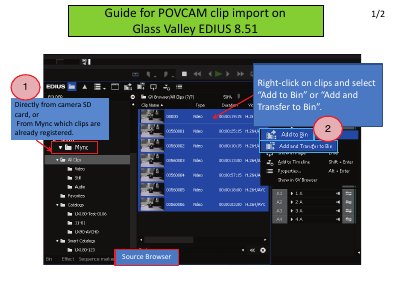
This guide provides instructions for importing POVCAM video clips into Glass Valley EDIUS 8.51. Users can import clips directly from a camera SD card or from Mync where clips are already registered. The process involves right-clicking on clips in the Source Browser and selecting either 'Add to Bin' or 'Add and Transfer to Bin'.
For MP4 file-spanned clips, specific steps are required to ensure proper audio playback. Users must line the clips in order of playback within the bin, select all clips, right-click to choose 'Set as Sequence', and then the clips will be unified. This manual is written in Chinese.
Right-click on the clips in the Source Browser and select 'Add to Bin' or 'Add and Transfer to Bin'.
Line the clips in order, select all of them, right-click to 'Set as Sequence', and then the clips will unify.