
Key facts
- Manuals
- 1
- Languages
- ZH
- Last added
- 2023-11-02
Featured Glass Valley manuals
Glass Valley EDIUS 8.51 POVCAM Clip Import Guide
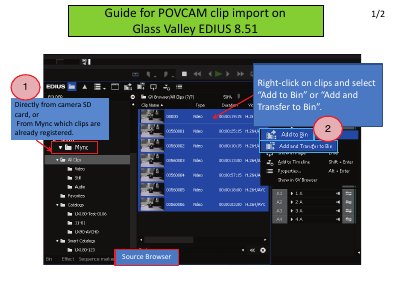
This guide provides instructions for importing POVCAM video clips into Glass Valley EDIUS 8.51. Users can import clips directly from a camera SD card or from Mync where clips are already registered. The process involves right-clicking on clips in the Source Browser and selecting either 'Add to Bin' or 'Add and Transfer to Bin'.
For MP4 file-spanned clips, specific steps are required to ensure proper audio playback. Users must line the clips in order of playback within the bin, select all clips, right-click to choose 'Set as Sequence', and then the clips will be unified. This manual is written in Chinese.
Covers: Source Browser · Add to Bin · Add and Transfer to Bin · Camera SD card · Mync · MP4 file-spanned clip
Latest Glass Valley manuals
Glass Valley EDIUS 8.51 POVCAM Clip Import Guide
User Manual 2 pages · 804 KB · ZHThis guide explains how to import POVCAM clips from camera SD cards or Mync into Glass Valley EDIUS 8.51 and handle MP4 spanned files.
Which document do I need?
User Manual
Day-to-day operation, settings and troubleshooting. Start here if the product is already set up.
Questions answered in Glass Valley manuals
How do I import POVCAM clips from a camera SD card?
Right-click on the clips in the Source Browser and select 'Add to Bin' or 'Add and Transfer to Bin'.
How do I fix audio playback issues on spanned MP4 clips?
Line the clips in order, select all of them, right-click to 'Set as Sequence', and then the clips will unify.