
This manual introduces the hardware installation, device configuration, network connection, telephone dialing and other functions of FWR8102, and provides help for users to use FWR8102.
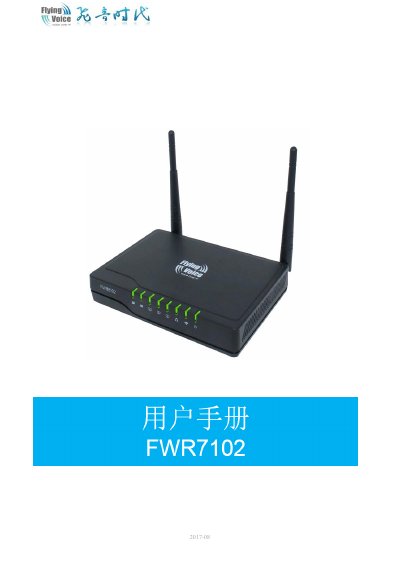
The FWR8102 is a dual-band wireless VoIP router from FlyingVoice (飞音时代) built to the IEEE802.11b/g/n standard and intended for individual users, SOHO and small businesses. This Chinese user manual covers the device's indicator lights and interfaces, hardware installation, IVR configuration and the web management interface.
The manual then describes network and security settings (WAN, LAN, IPv6, VPN, port mapping, DMZ, VLAN, DDNS, QoS, routing), wireless settings, SIP and FXS configuration, security features, applications such as advanced NAT and UPnP, and management functions including firmware upgrade, scheduled tasks, auto provisioning, SNMP and TR-069. It ends with diagnostic tools and a troubleshooting chapter for no response after power-on, failure to log in to the web page and forgotten passwords. This manual is written in Chinese.
| Product type | Dual-band wireless VoIP router |
|---|---|
| Wireless standard | IEEE802.11b/g/n |
| Wireless encryption | 64/128-bit WEP |
| FXS ports | FXS 1 and FXS 2 |
| Default web/menu password | admin |
The default password for the website and menus is admin. If the password has been changed and forgotten, restore factory defaults with the RST button.
Press the RST button and release it after about 5 seconds; the device returns to factory settings and all current settings, including system logs and call records, are deleted.
Check whether the power adapter is connected correctly.
Use the format http://Internet port IP address, and check that the Ethernet cable and firewall/NAT settings are correct.