
Explains the usage of 3D printer PiBot, including the screen interface instructions and operation steps.
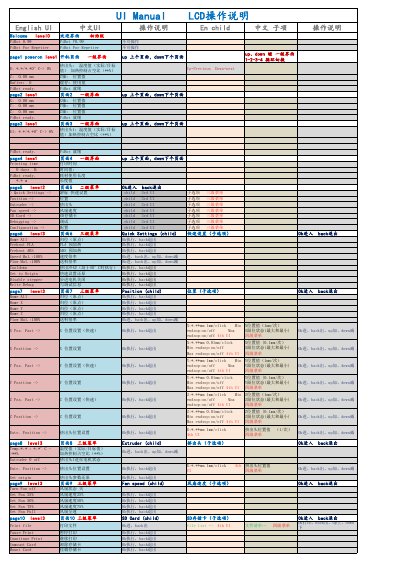
This PiBot document explains the LCD user interface of the PiBot 3D printer, presented in English and Chinese side by side. It walks through each menu level, starting with the welcome screen that shows PiBot V0.99, then the level 1 status pages that display extruder temperature, axis positions, buffer usage, printing time and filament length.
The manual then covers the level 2 menu and its sub-menus: Quick Settings, Position, Extruder, Fan speed, SD Card, Debugging and Configuration. It lists the key actions for each entry (Ok to enter, back to exit, up/down to change values) and describes the level 3 and level 4 setting screens, including acceleration, feedrate and extruder parameters such as steps per mm, PID values and EEPROM storage.
| Communication baud rate | 115200 |
|---|---|
| Firmware version shown at startup | PiBot V0.99 |
| Fan speed settings | Off, 25%, 50%, 75%, full speed |
Open the Fan speed sub-menu and choose Turn Fan off, Set Fan 25%, 50%, 75% or Set Fan Full; press Ok to execute and back to exit.
In the SD Card sub-menu select Pause Print and press Ok to execute; Continue Print resumes the job.
In the Configuration sub-menu choose Store to EEPROM and press Ok; the menu then shows configuration stored in EEPROM.
Use Load f. EEPROM in the Configuration sub-menu and press Ok to execute.