
IPEVO Document Camera Microsoft Teams Setup Guide

This document describes how to use IPEVO document cameras with Microsoft Teams, including tips for using the document camera and how to set it up.
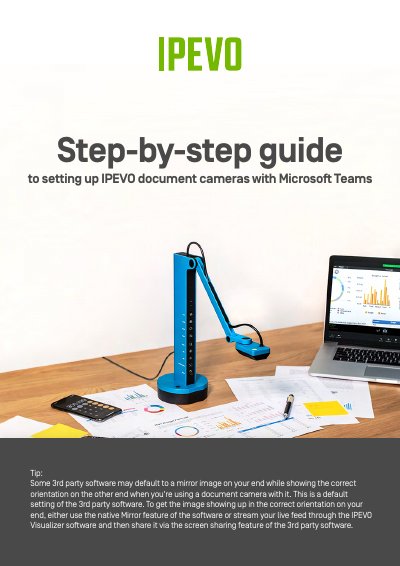

IPEVO Document Camera Microsoft Teams Setup Guide - cover page
Brand
Ipevo
Category
Other Computer Accessories
Document type
User Manual
Language
English
Pages
7
File format
PDF
File size
1.5 MB
Published
20 October, 2023
Updated
20 October, 2023
MD5 checksum
D7982CDE04D01CAF9972B8CC5552B96C

About this manual

This document provides a step-by-step guide for setting up IPEVO document cameras with Microsoft Teams. It lists the necessary materials, such as the camera, a computer, and the IPEVO Visualizer software, and details the process of connecting the device via USB and configuring settings within the Teams application.

What's inside

  • List of materials needed
  • Plug in IPEVO document camera
  • Open Microsoft Teams
  • Click Settings
  • Select video source
  • Select audio source
  • Troubleshooting mirrored image
  • Using IPEVO Visualizer software

Frequently asked questions

How do I fix a mirrored image when using IPEVO with Microsoft Teams?

Use the Share function in Microsoft Teams to stop the software from accessing the camera directly, then stream the live feed through IPEVO Visualizer software.

Do I need special software to use IPEVO with Microsoft Teams?

Yes, you may need IPEVO Visualizer software to stream the live feed correctly if the third-party software defaults to a mirror image.

Download PDF (1.5 MB)

More Ipevo Manuals


View all Ipevo manuals →