
This document provides instructions for using the G7-540 device. The device complies with Part 15 of the FCC rules, with operation subject to two conditions: (1) the device must not cause harmful interference, and (2) the device must accept any interference received, including interference that may cause undesired operation. The document also includes Federal Communications Commission requirements, such as the device's compliance with reasonable protection limits against harmful interference in residential installations.
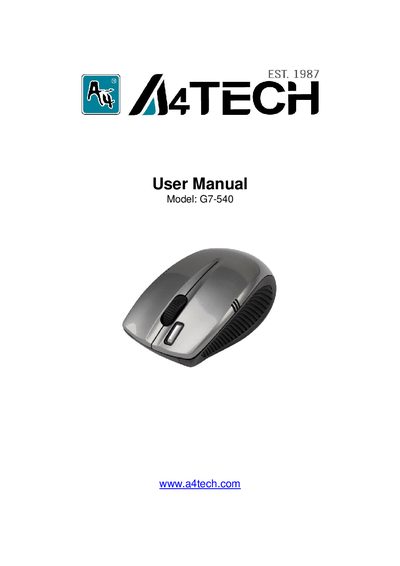
This manual guides you through installing the nano‑receiver, inserting the battery, and powering the mouse. It also covers software installation, pairing the mouse with a receiver, and configuring the 16‑in‑1 gesture button functions.
Additional sections describe how to adjust DPI, set the RF channel to avoid interference, change report rates, monitor battery status, and resolve common issues such as connectivity problems or low battery warnings.
| Battery voltage range | 1.0 V – 1.2 V |
|---|---|
| DPI levels | 4 selectable levels |
| Report rates | 500 Hz (2 ms), 250 Hz (4 ms), 125 Hz (8 ms) |
| RF frequency | 2.4 GHz |
| Battery status indicator | Shown in software UI |
| Power button positions | 1 = on, 0 = off |
Right‑click the mouse icon in the taskbar, select “DPI Set”, and choose the desired DPI level.
Right‑click the mouse icon, choose “Pair ID Program”, press “Start Pair ID”, remove and re‑insert the batteries for about 15 seconds, then the matching code will appear.
Make sure the mouse is turned on, the battery is installed correctly, the receiver is plugged in, and try a different USB port.