
This document provides information to help you install a Digi Connect Wi-SP or Digi ConnectPort TS W device on a secured wireless network.
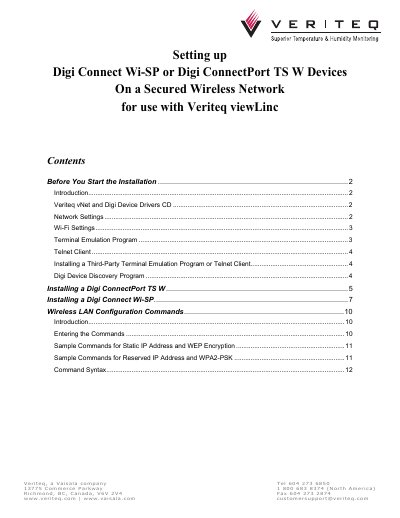
The document provides step‑by‑step instructions for setting up Digi Connect Wi‑SP and Digi ConnectPort TS W devices on a secured Wi‑Fi network. It covers required software, network settings, terminal emulation, and device configuration commands.
Key sections include preparing the installation environment, installing required drivers, configuring IP and Wi‑Fi parameters, using Telnet or a terminal program, and resetting the device to factory defaults if needed. The guide also supplies sample command sets for static IP with WEP and reserved IP with WPA2‑PSK.
| Default username | root |
|---|---|
| Default password | dbps |
| Reset button operation | Press gently with a non‑conductive tool |
Disconnect power, press the reset button gently with a non‑conductive tool, keep it pressed while reconnecting power, and release after the LED pattern shows 1‑1‑1 then 1‑5‑1.
The guide recommends HyperTerminal if available; otherwise a third‑party terminal program such as RealTerm, TeraTerm, or PuTTY can be used.
You must provide the device’s MAC address, choose static IP, subnet mask, and gateway address as supplied by your IT administrator.
Use the "show network" and "show wlan" commands in the Telnet session to confirm the settings were applied correctly.