
This document provides instructions on how to install scanner drivers and perform scanning and copying operations.
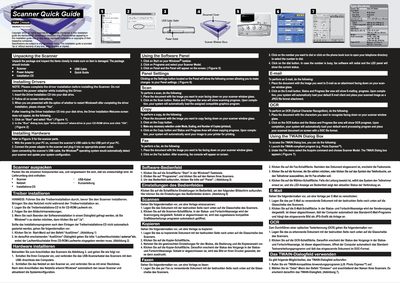
The guide begins with unpacking instructions, listing the scanner, power adapter, and installation CD. It then walks the user through driver installation, emphasizing that the driver must be installed before connecting the power adapter, and explains how to restart Windows after the install.
Next, the hardware setup is described: connect the USB cable to the PC, attach the power adapter, and let Windows detect the scanner. The software panel section shows how to launch the scanner program, adjust panel settings, and perform functions such as scanning, copying, faxing, emailing, and OCR. Instructions for using the TWAIN dialog with compatible applications are also included.
| Scanner Type | CIS Fatbed |
|---|---|
| Scan Modes | True Color, Gray |
| Scan Area | 1147 x 165 mm (H) x 297 x 420 mm (V) |
| Optical Resolution | 2400 dpi (up to 2400 dpi) |
| Interface | USB 2.0 |
| Light Source | LED |
Insert the Driver Installation CD into the CD‑ROM drive, follow the on‑screen instructions, and when prompted to restart Windows, choose “Yes”.
Place the document face down on the scanner glass, click the Scan button, and watch the progress bar until the scan finishes and the image opens in the default graphics program.
Put the document face down on the glass, click the Copy button, adjust mode, scaling and number of copies if needed, then click Copy again; the progress bar shows copying status and the image is sent to the printer.
Lay the document face down on the glass, press the OCR button, and after the OCR progress completes the scanned text opens in the default word‑processing program as a DOC file.