
Progisp is a programming software for AVR chips, supports custom parallel download programmers, serial download programmers, USBASP programmers, etc. It can customize the programming chip, fuse information prompt information, support high-voltage programmers, offline downloaders, support command line mode, green software, no need to install, and occupy less resources.
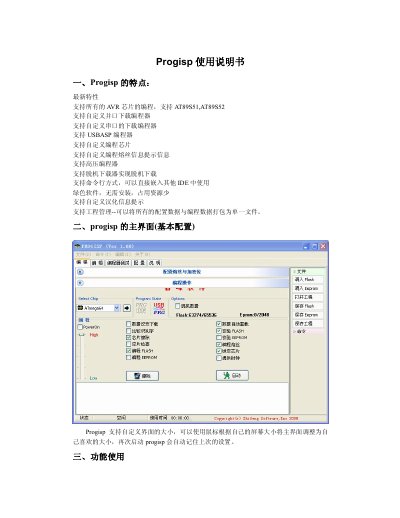
Progisp is a portable, lightweight programming tool that supports all AVR chips, including AT89S51 and AT89S52, as well as a variety of custom parallel, serial, USBASP and high‑voltage programmers. The software offers a customizable interface, command‑line integration, and automatic project management features such as data buffering and serial number handling.
The manual explains how to select target chips, connect programmers, perform programming or erasing operations, test programmer functionality, and adjust settings like clock unlocking and firmware upgrades. It also covers configuration of parallel‑port addresses and serial‑port options for different hardware adapters. This manual is written in Chinese.
| Supported chip families | All AVR chips, AT89S51, AT89S52 |
|---|---|
| Interface mode | Command line mode available |
| Installation | Portable (no installation required) |
| Firmware upgrade | Only for ZhiFeng products |
Open the chip selection drop‑down box and choose the desired chip; click the black arrow to view the wiring diagram or chip placement picture.
Use the programmer test tab; for a high‑voltage programmer connect a multimeter’s negative lead to pin 20 and the positive lead to the other pins as described, then click the test button.
Check the desired programming options, then click the “Auto” button to start programming; any errors will be shown in a dialog box.
Yes, you can resize the main interface with the mouse; Progisp will remember the size for the next launch.