
This manual introduces how to use the W20 router.
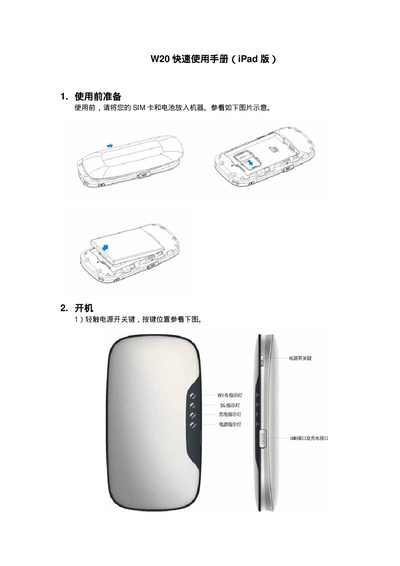
The guide starts with preparation steps, instructing you to insert the SIM card and battery before turning the device on. It then explains the power button location and the meaning of the LED indicators for power, Wi‑Fi, and charging.
Next, it walks you through connecting the router to a Wi‑Fi network from an iPad, accessing the router’s web management interface at 192.168.0.1 with the default credentials (adj/adj), and browsing the internet once the WAN IP is obtained. This manual is written in Chinese.
| Default management IP address | 192.168.0.1 |
|---|---|
| Default login username and password | username: adj, password: adj |
Press the power button; the power LED will light to indicate the router has started.
Open Settings → Wi‑Fi on the iPad, select the SSID "CMCC‑TD", and confirm the connection.
Enter 192.168.0.1 in the iPad’s Safari address bar and log in with the default credentials.
After logging in, check the "WAN IP address" field on the Information page; a displayed IP means the router is online.