
Eye 311Q is a webcam with snapshot button, adjustable focus and rotating lens. It has an LED indicator light to show the connection status and can be securely fixed or clipped to an LCD screen with its flexible base. After installing the driver, simply connect it to the computer's USB port to use. The Genius application software allows for real-time photo capturing, video recording, and basic security monitoring.
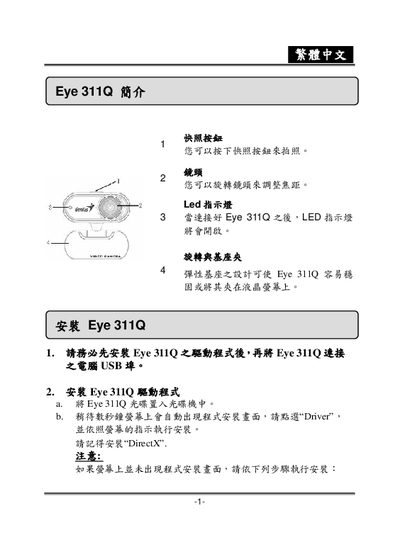
This manual introduces the Eye 311Q network camera, showing how to install the driver, connect the USB cable, and launch the accompanying Genius software on Windows. It also explains the physical features such as the snapshot button, rotating lens, LED indicator, and flexible mounting base.
The guide details the software functions, including preview mode, static and dynamic capture modes, safety monitoring, image parameter adjustments, resolution choices (VGA, SVGA, XGA, SXGA), image formats (RGB24, I420), and a collection of 27 image effects. Instructions for saving, printing, and uninstalling the driver are also provided. This manual is written in Chinese.
| Supported resolutions | VGA 640×480, SVGA 800×600, XGA 1024×768, SXGA 1280×960 |
|---|---|
| Supported image formats | RGB24, I420 |
Insert the Eye 311Q CD, run SETUP.EXE (or D:\SETUP.EXE), and follow the on‑screen prompts to install the driver and DirectX.
Select the 靜態影像擷取模式 in the software and press the snapshot button to take a picture, which can then be emailed to friends.
In preview mode, choose the desired resolution (VGA, SVGA, XGA, or SXGA) from the resolution options.