
PenMount Windows NT driver installation instructions
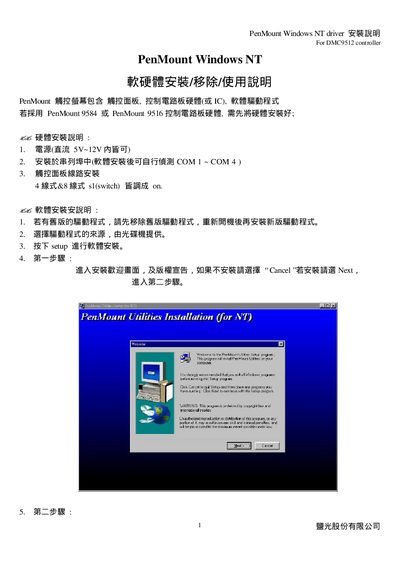
This guide explains how to install the PenMount DMC9512 driver on Windows NT systems. It includes hardware connection steps, power requirements, serial port configuration, and software installation procedures.
After installation you must run the first calibration, can use the Draw & Statistics tools, and learn how to safely remove the driver. Troubleshooting tips for blue‑screen issues, wake‑up problems and calibration accuracy are also provided. This manual is written in Chinese.
| Power source | DC 5~12V |
|---|---|
| Serial ports | COM1 – COM4 |
| Switch mode | 4‑line & 8‑line switch set to ON |
| Driver version | 40.03 |
| Supported controllers | DMC8910, DMC9510, DMC9512 |
Check the BIOS COM port setting; if it is disabled, enable it and reinstall the driver.
Windows NT 4.0 stays in an active state and does not support sleep or wake‑up features.
During calibration, place the stylus at the intersection of the crosshair for a more accurate value.