
Key facts
- Manuals
- 1
- Languages
- EN
- Last added
- 2026-11-16
Featured IROAD manuals
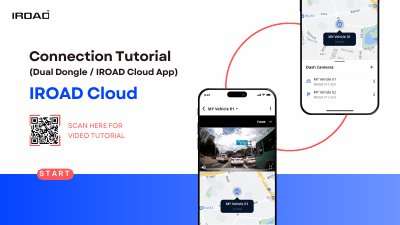
IROAD Dual Dongle Dash Cam Cloud App Connection Tutorial
This tutorial explains how to connect an IROAD dash cam to IROAD Cloud. An active internet connection is required, such as car Wi-Fi, an LTE modem, a smartphone hotspot, or home/office Wi-Fi. The dash cam normally starts in Wi-Fi Mode, which is needed for Cloud registration; the tutorial notes not to use the IROAD SMART VIEW app for this Cloud setup.
The steps cover downloading the IROAD Cloud app from Play Store or App Store, turning on the dash camera, signing in or signing up, starting Wi-Fi tethering, turning on Bluetooth, pressing the Wi-Fi Registration button, selecting the dash cam, entering a vehicle name, and waiting for the “Cloud is connected” message and a blue icon in the app.
Covers: Check Before Starting · Download the IROAD Cloud App · Turn on the Dash Camera · Complete the Cloud connection in the IROAD Cloud App · Verify the Cloud Connection
Latest IROAD manuals
IROAD Dual Dongle Dash Cam Cloud App Connection Tutorial
Quick Start Guide 15 pages · 4.6 MB · ENStep-by-step guide for connecting an IROAD dash cam to IROAD Cloud using the IROAD Cloud app, Bluetooth, and Wi-Fi registration.
Which document do I need?
Quick Start Guide
The shortest path to a working setup, usually only a few pages.
Questions answered in IROAD manuals
What internet connection is needed for IROAD Cloud?
The dash cam needs an active internet connection, such as car Wi-Fi, an LTE modem, a smartphone hotspot, or home/office Wi-Fi.
From: IROAD Dual Dongle Dash Cam Cloud App Connection Tutorial
Which app should I use for IROAD Cloud?
Use the IROAD Cloud app, not the IROAD SMART VIEW app.
From: IROAD Dual Dongle Dash Cam Cloud App Connection Tutorial