
Quick start guide for setting up the Samsung SmartCam P6410BN home WiFi security camera via router, app, and Wi-Fi.
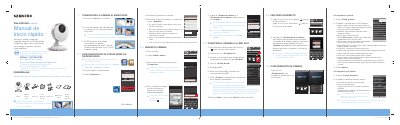
Spanish quick start guide for the Samsung SmartCam P6410BN home WiFi security camera. It covers unpacking, connecting the camera to a router, creating a Samsung SmartCam app account, adding the camera, connecting it to a Wi-Fi network, viewing live video, and adjusting camera settings.
Settings described include general options such as camera name, speaker/microphone volume, night vision, WDR, SD card replacement, date display, camera password, status LED, and firmware version, plus event options such as forced notification, motion/audio detection sensitivity, and YouTube/Picasa event registration. This manual is written in Spanish.
| User ID length | 8-14 characters (letters, numbers, periods) |
|---|---|
| Account password length | 8-14 characters (letters and numbers, except colons and commas) |
| Camera password length | 1-8 alphanumeric characters without spaces |
| Serial number length | 15 digits |
| Initial status LED | Red for about 1 minute, then green |
| Wi-Fi connection LED | Changes from blinking blue to green in 30 seconds |
| Live view start | Within 20 seconds |
Connect the adapter to the camera and connect one end of the network cable to the camera and the other to an open router port; the status LED turns red for about a minute and then green.
Enter the camera's 15-digit serial number manually; the serial number is on the camera label or packaging.
Open the camera options, tap Settings, enter the camera password, tap Network settings, turn on Wi-Fi, select a network and enter its password, tap OK, then unplug the network cable; the LED changes from blinking blue to green in 30 seconds.
Tap the camera icon, enter the camera password, and transmission starts within 20 seconds.