
Step‑by‑step guide for setting up remote synchronization on Nextep Hive, covering network requirements, MyQNAPcloud account, and file sharing.
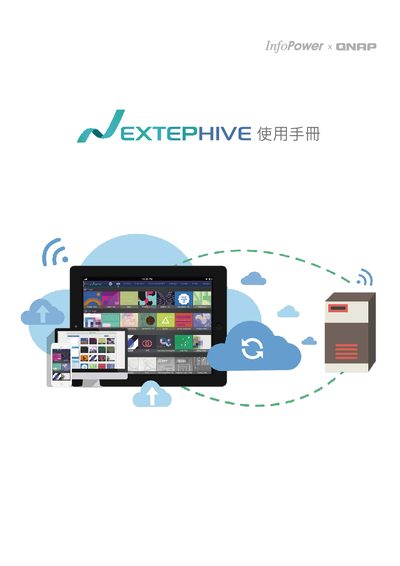
This manual explains how to configure remote synchronization for Nextep Hive. It details the required network settings, including UPnP support and port forwarding, and walks you through creating a MyQNAPcloud account to enable remote access.
The guide also covers server configuration on the NAS, password management, file upload methods, and user management for team collaboration. Additional troubleshooting and contact information are provided at the end. This manual is written in Chinese.
| Required router feature | UPnP |
|---|---|
| Default admin credentials | admin / admin |
| Server address format | xxx.xx.x.xx:20089 |
The router must support UPnP so the required ports can be opened automatically.
Visit the URL http://goo.gl/wZHnnq and follow the instructions to register a MyQNAPcloud account.
Open the settings, select “修改密码”, enter the old password and the new password, then confirm to save.
Drag and drop files into the upload area on the web interface or use the upload button to transfer files.