
Instructions for installing and using JVC Projector Calibration Software 11 to optimize image quality for DLA-NX9/NX7/NX5 projectors.
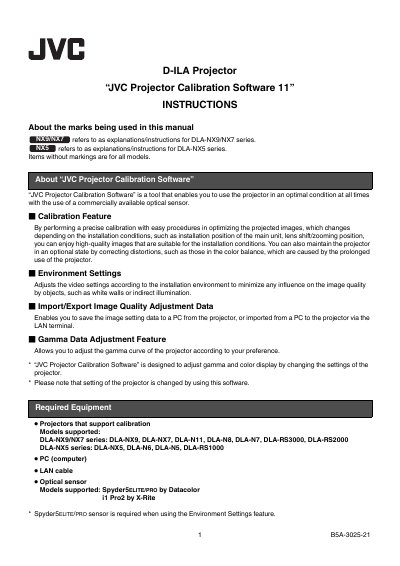
This manual provides instructions for the JVC Projector Calibration Software 11, a tool designed to optimize projector performance using a commercially available optical sensor. It supports the DLA-NX9/NX7 series (DLA-NX9, DLA-NX7, DLA-N11, DLA-N8, DLA-N7, DLA-RS3000, DLA-RS2000) and the DLA-NX5 series (DLA-NX5, DLA-N6, DLA-N5, DLA-RS1000). The software enables precise calibration of gamma curves and color balance to maintain high-quality images under various installation conditions.
| Supported Projector Models (NX9/NX7) | DLA-NX9, DLA-NX7, DLA-N11, DLA-N8, DLA-N7, DLA-RS3000, DLA-RS2000 |
|---|---|
| Supported Projector Models (NX5) | DLA-NX5, DLA-N6, DLA-N5, DLA-RS1000 |
| Required Optical Sensor for Environment Settings | Spyder5 ELITE/PRO by Datacolor |
| Required Optical Sensor for Color Calibration | i1 Pro2 by X-Rite |
| Minimum Memory Requirement | 1 GB or more |
| Minimum HDD Requirement | 256 MB or more |
| Required Software Framework | .NET Framework 3.0 / 3.5 |
The software supports Windows 7 (32-bit, 64-bit), Windows 8 (32-bit, 64-bit), and Windows 10 (32-bit, 64-bit).
No, Macintosh systems are not supported by this software.
You must connect an optical sensor to a PC via USB cable, and connect the PC to the projector via a LAN cable.
Close the application and restart the projector, then wait at least 5 minutes before restarting.