
French-language HP LaserJet M1120 MFP copy guide covering flatbed copying, multiple copies, duplex copying, special media, and copy quality settings.
This HP LaserJet M1120 MFP document explains how to make copies with the flatbed scanner. It covers single copies, multiple copies, and two-sided originals copied onto one-sided or two-sided documents.
It also describes copying on special paper, labels, transparencies, and letterhead or preprinted forms, including how to change the default media size and type. The final sections explain how to adjust copy quality and reduce or enlarge the copied image. This manual is written in French.
| Copy quantity range | 1 to 99 copies |
|---|---|
| Default media size setting | Format pap déf |
| Default media type setting | Type papier déf |
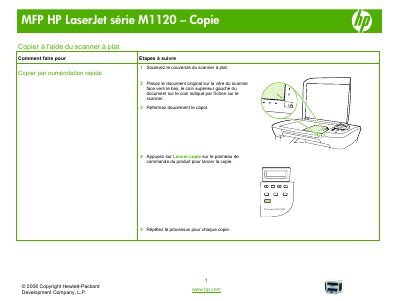
Lift the flatbed scanner lid, place the original face down on the scanner glass with the top-left corner aligned to the icon, close the lid, and press Start Copy on the control panel.
The number of copies can be set between 1 and 99 using the arrow keys after pressing Number of Copies.
Copy the first side from the flatbed scanner, turn the page over and copy again, then place the copied page face down in the priority input tray and press Start Copy, repeating for all pages.
Press Other Copy Settings, select Reduce/Enlarge with the arrow keys, choose the target size, and press Start Copy to begin the job or OK to save the selection.