
HP instructions for connecting the 1200w NFC/Wireless Mobile Print Accessory to an Officejet 100/150, powered by the printer or by AC power.
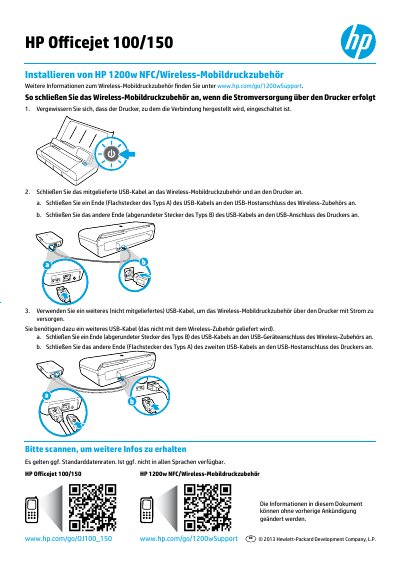
This three-page German document explains how to install the HP 1200w NFC/Wireless Mobile Print Accessory on an HP Officejet 100/150 printer. It describes two connection setups: one where the accessory is powered through the printer with a second USB cable, and one where it is powered from the mains with the power supply and power cord.
The document also explains how to check the accessory's status LED after connecting it, and how the accessory can be used as a USB pass-through between the printer and a computer using an additional USB cable that is not supplied with the accessory. It ends by pointing to www.hp.com/go/1200wSupport for more information. This manual is written in German.
| Cable connection to printer | Type A flat connector to the accessory's USB host port; type B rounded connector to the printer's USB port |
|---|---|
| Status indicator | A green LED means the wireless accessory is working correctly |
| Optional mains power | Power supply with power cord connected to the mains socket |
| Second USB cable | Not supplied with the wireless accessory |
Make sure the printer is turned on, connect the included USB cable between the accessory's USB host port and the printer's USB port, then use a second USB cable (not included) from the accessory's USB device port to the printer's USB host port for power.
A green LED indicates that the wireless accessory is working correctly.
Yes, it can be used as a USB pass-through between the printer and the computer, using an additional USB cable that is not supplied with the accessory.
HP refers to www.hp.com/go/1200wSupport for further information.