
User guide for Elavon's MobileMerchant app and Datecs BluePad-50 PIN Pad, covering setup, pairing, app usage, and troubleshooting for mobile card payments.
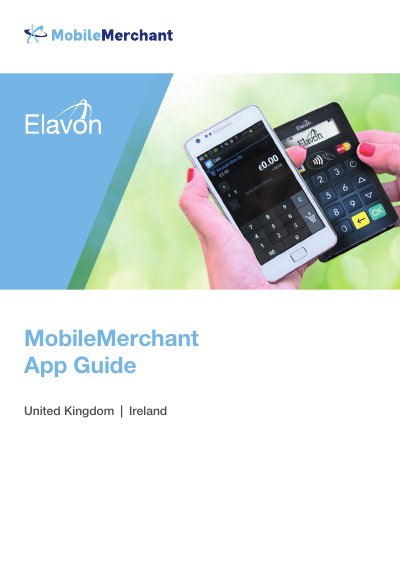
This guide explains how to set up and use the MobileMerchant app with the Datecs BluePad-50 PIN Pad for processing card payments. It covers pairing the PIN Pad with a mobile device, installing and configuring the app, performing transactions, and troubleshooting common issues. The system uses Bluetooth for wireless connection and requires an Elavon merchant account and compatible mobile device.
The guide includes step-by-step instructions for first-time setup, including creating a secure 5-digit PIN, entering Terminal ID and Transaction Key, verifying business name, and logging into the MobileMerchant Portal. It also details how to perform sales, view past transactions, refund transactions, and access the MobileMerchant Portal for reporting and remote card payments.
A smart mobile device (Android OS 4.1.1+ or iPhone/iPad OS 6.0+), a merchant account with Elavon, a Datecs BluePad-50 PIN Pad, and the MobileMerchant App downloaded from the App Store or Google Play™.
The MobileMerchant app on a smart device processes card transactions using Bluetooth to connect to a Datecs BluePad-50 PIN Pad. The customer inserts their card and enters their PIN. The app then connects to Elavon via the internet to authorize the transaction, which takes up to 30 seconds.
Power on the PIN Pad, enable Bluetooth on your mobile device, then press the C1, 2, OK3 buttons in succession to enter pairing mode. Select the device name on your mobile device and confirm the passkey matches.