
This user guide provides step-by-step instructions for using the Datacolor SpyderX Pro and Elite monitor calibrators to achieve accurate color on laptop and…
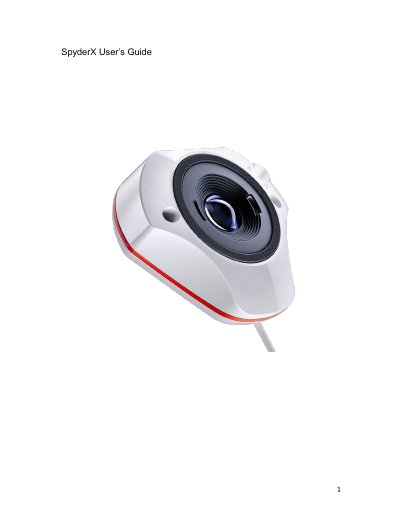
Thank you for purchasing your new SpyderX monitor calibrator. This document offers a step-by-step guide for using your SpyderX calibrator to get the most accurate color from your laptop and/or desktop display(s). It covers system requirements, software activation, and calibration processes.
The manual details specific workflows for both the SpyderX Pro and SpyderX Elite models, including welcome screens, display selection, control identification, and various calibration settings. It also explains features like ambient light monitoring, profile management, soft proofing, and studio matching.
| Power Requirements | 5V DC, 100 mA |
|---|---|
| Dimensions (Width) | 44.8 mm |
| Dimensions (Height) | 76.0 mm |
| Dimensions (Length) | 79.1 mm |
| Weight | 140g |
| Operating Temperature | 5°C to 40° C |
| Maximum Relative Humidity | 80% for temperatures up to 31°C |
| Maximum Altitude | 2,000 meters |
To measure and correct by comparison with a standard, of the correct value or each reading on a measuring instrument.
A data file that describes the color behavior of a physical device (such as a scanner, monitor, or printer) or that defines the color of an abstract color space.
Light from any source, other than the projection device, that reaches the screen surface.
It is located on the inside of your box under the hardware device.