
BSP Verifone VX 690 quick user guide: Bluetooth pairing with the charger base, loading parameters, changing paper rolls, sales, refunds, reports and…
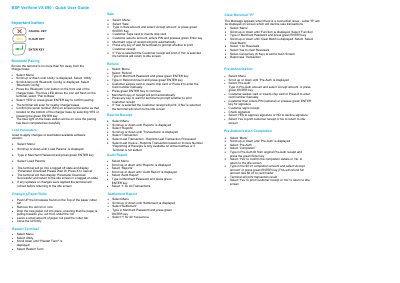
This quick user guide for the BSP Verifone VX 690 terminal walks through the day-to-day operations of the device. It explains how to pair the terminal with the charger base over Bluetooth, how to load parameters and software updates, how to change paper rolls, and how to restart the terminal.
Transaction steps are given for sale, refund, pre-authorisation, pre-authorisation completion, reprinting receipts, audit and settlement reports, and clearing reversals when the letter "R" appears after a connection issue. A second page lists EFTPOS response codes with their meanings and the action to take, and gives BSP Cook Islands support contacts: phone 682 22014 during business hours, 682 55014 and 682 55932 after hours, email [email protected] and www.bsp.co.ck.
| Bluetooth pairing distance from charger base | No more than 5 m |
|---|
Select Menu, then Utility, then Bluetooth Config, press the Bluetooth icon button on the charger base and choose 'Pair to Base'. Confirm the serial number shown on screen matches the one on the bottom of the base and press the green ENTER key; the blue light on the base stays on when pairing succeeds.
Select Menu, scroll to 'Load Params', type the Merchant Password and press the green ENTER key. The terminal logs off, shows 'Parameter Download Successful' and returns to the idle screen, rebooting first if changes were applied.
Push up the lid release on the top of the paper cutter bar, remove the old roll or core, and drop the new roll in with the paper pulling towards you from under the roll. Leave a little paper past the cutter bar and close the lid firmly.
The '05 Do Not Honour' error is a generic bank response code with several possible causes; it generally indicates a card error rather than a problem with the merchant facility. The customer should use an alternate card or contact their bank.