
This manual introduces how to use the TTLOCK application to manage the TTLOCK smart door lock, including registering an account, unlocking the door lock, changing the password, and other functions.
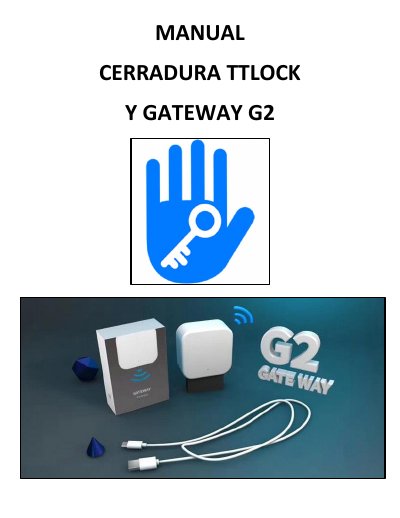
This manual describes the TTLOCK application for managing multiple types of locks and other devices. It explains account registration and login, lock synchronization and administration, fault diagnostics, time calibration, authorized users, and customer service.
It also covers the G2 gateway, which bridges smart locks and home WiFi networks. The manual includes the steps for adding the gateway, connecting it to power with a USB cable, and joining it to a WiFi network. This manual is written in Spanish.
| Lock communication | Bluetooth |
|---|---|
| Gateway function | Bridge between smart locks and home WiFi networks |
| Gateway power | USB cable |
| Gateway indicator | Red and blue LED flashing |
| App languages | Chinese, English, Spanish, Portuguese, Russian, French, and Malaysian |
| Gateway model | G2 |
The lock must be synchronized with the app before use. Add it by Bluetooth while near the lock after it enters configuration mode.
Yes, but only after the administrator removes it from their account. Removal must be done by Bluetooth near the lock.
It bridges smart locks and home WiFi networks, allowing the user to view and adjust the lock clock, read logs, and change passwords remotely.
Log in to TTLOCK, select the top-left option, choose Gateway, select G2, connect it to power with the USB cable, then select the plus icon, add the gateway, choose the WiFi network, and enter its password.