
This guide shows how to create a WebEDI Account.
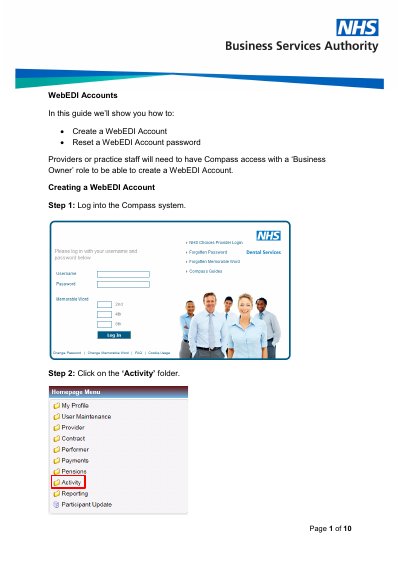
This guide shows how to create a WebEDI Account in the Compass system and how to reset a WebEDI Account password. It states that providers or practice staff need Compass access with a 'Business Owner' role to be able to create a WebEDI Account. The steps start in the 'Activity' folder, open the 'WebEDI Account Update' option, select a Provider ID and then enter the performer number and EDI software supplier.
The guide then covers completing the WebEDI Account details — location ID, software version and Daily Report subscription status — and adding contact details on the WebEDI Contacts Details tab, where title, forename, surname and email address are mandatory. Once the account is created it appears in the bottom table, and the 'Edit' button displays the username, password and EDI site number. The password reset steps use the drop-down arrow next to the 'Edit' button and then 'Reset Password'.
Providers or practice staff need Compass access with a 'Business Owner' role to be able to create a WebEDI Account.
Click the 'Edit' button next to the WebEDI Account, and the username, password and EDI site number are displayed on that screen.
Select the Provider ID in the top table, then click the drop-down arrow on the right side of the 'Edit' button and select 'Reset Password'. To view the new password, select the 'Edit' button.
Title, forename, surname and email address are the mandatory fields to complete before clicking 'Save'.