
Explains how to configure WiFi module via cellphone
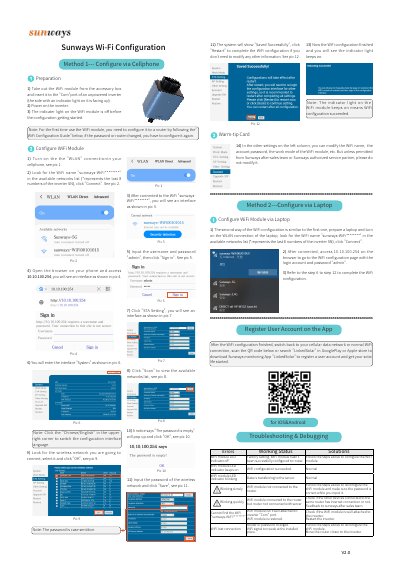
This Sunways document describes how to configure the Wi-Fi module for an inverter. It covers inserting the module into the inverter "Com" port, powering on the inverter, and connecting a phone or laptop to the module's default network.
The guide provides step-by-step instructions for accessing the configuration page at 10.10.100.254, selecting a router network, entering the password, and restarting the module. It also includes LED status troubleshooting and instructions to register a user account with the Sunways "LinkedSolar" app.
| Default configuration IP address | 10.10.100.254 |
|---|---|
| Default login username and password | admin |
| Inverter connection port | Com port |
Look for the network "sunways-WiFi********" in the available networks list and click Connect.
It means the WiFi module has not been successfully configured to the router.
Follow the configuration steps again to reconfigure the WiFi module.
Search "LinkedSolar" in GooglePlay or Apple Store to download the app.