
This is a user manual of Bluesignal Android client. It describes how to download, install, login, use the home page, messages, send text, images, audio, files, videos, locations, red envelopes, receipts, copy, delete, forward, chat information, invite members to join discussion groups, remove members from discussion groups, modify group names, pin messages, unpin messages, set whether to receive new messages, set messages as common contacts, set the chat background of the current message, search chat history, clear chat history, and delete and exit discussion groups.
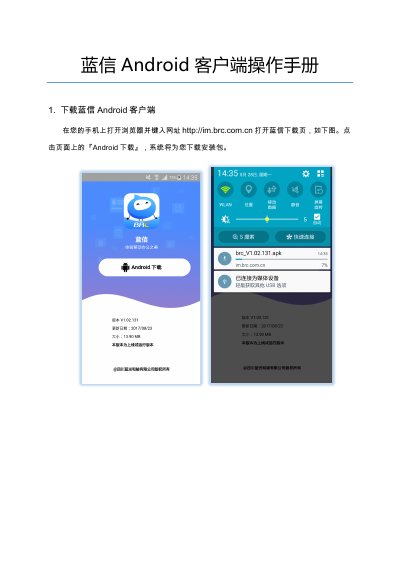
This manual provides step-by-step instructions for downloading and using the BRC Bluesignal Android client. It covers logging in, navigating the home screen, managing messages (including pinning, deleting, and forwarding), and using chat features. The guide also explains settings such as audio output, font size, and message synchronization options.
The app supports sending various message types including text, images, videos, files, and location. Users can manage group chats, invite members, rename groups, and customize chat backgrounds. The 'My' section allows access to settings, file management, and account information. This manual is written in Chinese.
The message list page displays the most recent 100 messages.
The client supports sending and receiving text, emojis, voice, images, photos, video, location, red packets, files, and receipts.
Users can set the font size for chat text within the General Settings menu.