
Vantec NexStar® MX Dual Bay External HDD Enclosure is a quick and simple way to expand storage capacity to your computer. It comes without the hassle of diving inside the PC and messing with all those wires, cables and connections. It provides maximum storage with the increased capacity of two spanning hard drives for your precious family photos, music, video, and games. It supports Individual, RAID 0, RAID 1, and JBOD modes for effective storage management. The sturdy drive cage protects your hard drive while the aluminum case effectively draws away the heat.
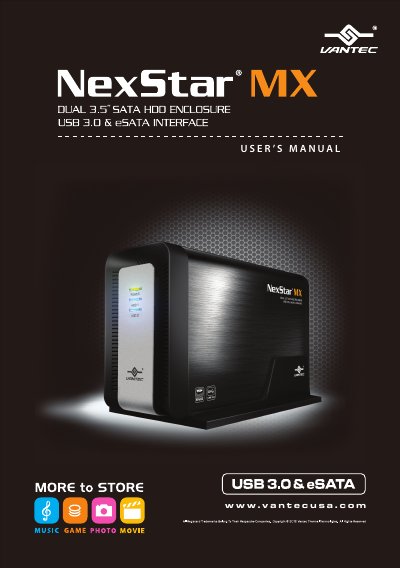
The Vantec NexStar MX is a dual 3.5-inch RAID enclosure featuring USB 3.0 and eSATA interfaces. It supports Individual, JBOD, RAID 0, and RAID 1 modes to expand storage capacity for photos, music, video, and games. The unit includes an aluminum casing with a 40mm rear fan to dissipate heat and protect the hard drives.
| Device Support | SATA I/II/III Hard Drives |
|---|---|
| Device Size | 3.5" |
| Internal Interface | SATA |
| External Interface | USB 3.0 & eSATA |
| HDD Capacity | Up To 6TB |
| Fan Size | 50mm |
| Material | Aluminum & Plastic |
| Dimension | 197 x 123 x 72 mm |
The unit supports Individual, JBOD, RAID 0, and RAID 1 modes for effective storage management.
The NexStar MX comes with a 1 year limited warranty, including 90 day parts coverage.
When connecting a new hard drive, select the 'Initialize' option in the 'Disk Insertion' dialog that appears.