
The document introduces how to manually change tools on the MAX 5 controller and set tools to Manual or Auto (in ATC).
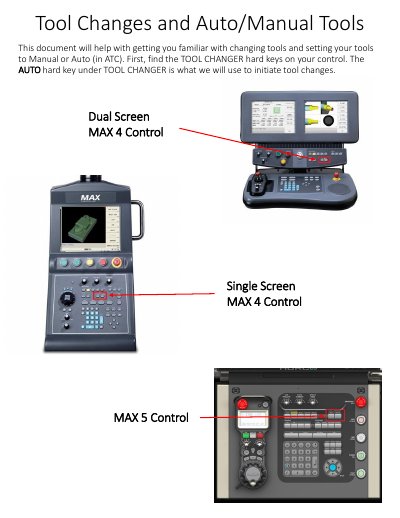
This guide explains how to manually load tools into the spindle and configure them as Auto or Manual tools. It covers using the TOOL CHANGER hard keys and TOOL MANAGEMENT soft keys to initiate tool changes, toggle tool modes, and manage the ATC map. The process includes entering tool numbers, selecting tool types, and verifying tool locations in the ATC.
The guide also details how to change tools while in TOOL SETUP mode and how to verify tool locations using the AUTO tab in Tool Management. It includes notes on managing tool pockets and disabling even-numbered pockets for large tools.
Press the TOGGLE AUTO/MANUAL soft key on the touch screen, or match the NEXT TOOL field to the TOOL IN SPINDLE field and press the AUTO hard key under TOOL CHANGER.
Enter the Tool Management screen, press the MANUAL hard key under MACHINE MODE, then the TOOL MANAGEMENT soft key. Select the AUTO tab to view and manipulate your ATC map.