
This document provides instructions on how to connect and use the Sadie LRX2 audio processing device, including connecting the power supply and USB2 interface, and installing the software.
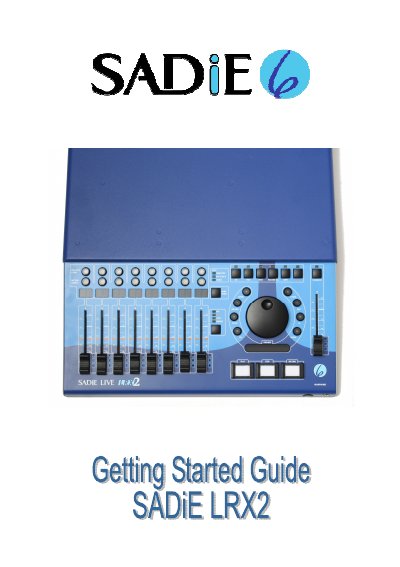
The document serves as a getting started guide for the SADiE LRX2 interface. It details how to connect the power supply and USB cable to a computer running Windows, including specific instructions on allowing the plug-and-play driver installation to complete automatically. The guide also explains how to install the SADIE6 software from the provided CD-ROM.
| Power Supply Requirement | 12V DC power supply (PSU) |
|---|---|
| USB Connection Type | USB2 or Hi-Speed socket |
| Audio I/O Connectors | up to three Slither cards with 2 x 25-way D Type connectors |
| Maximum Record Time (Stereo Mixdown) | 2 hours 4 mins at 96K/24bit |
| Maximum Record Time (Mono Streams) | 8 hours 16 mins at 48K/24bit |
The hardware will not work, and an error message will appear when starting the software.
It is found in the c:\windows\system32\drivers folder.
The factory default setting is +18dBu.