
This is a field repair guide for the Stylus Pro 4000 printer, which introduces the replacement and repair methods of various parts of this printer
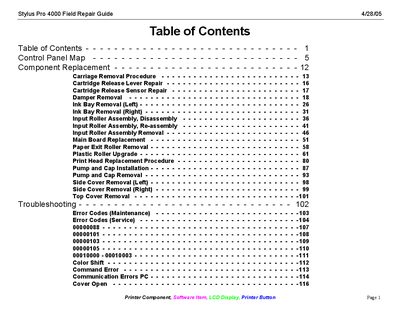
This guide covers the complete service process for the Epson Stylus Pro 4000 printer, including detailed instructions for removing and replacing major components such as the carriage, ink bays, print head, and main board. It also provides adjustment procedures for rollers, belts, and sensors, as well as firmware update steps.
Additional sections include troubleshooting tips, error code listings for both maintenance and service, and configuration settings for the printer's interface, language, and cutter pressure. The manual is intended for field technicians performing repairs and maintenance on the Stylus Pro 4000.
| Platen Gap Options | Standard, Narrow, Wide, Wider |
|---|---|
| Interface Options | Auto, USB, IEEE1394, Option |
| Supported Languages | English, Portuguese, Spanish, German, Italian, French |
Press and hold the Pause button and turn on the printer.
Use the Cut Adj. setting and set Pressure to the desired percentage, e.g., 73%.
Select the desired option (Auto, USB, IEEE1394, or Option) in the INTERFACE menu.
Enter Maintenance Mode 2 by holding the Left, Down, and Up buttons while turning on the printer, then select SELF TESTING.