
This is a TCL network phone that supports Chinese and English display, quick dialing, and can be used with IM software.
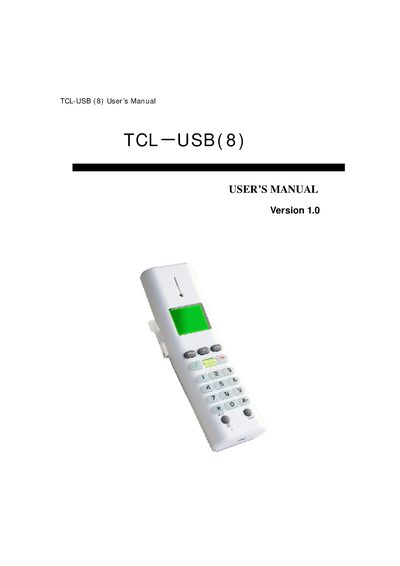
This manual guides you through installing the USB driver, connecting the TCL-USB (8) to a PC, and integrating it with Skype. It includes step‑by‑step instructions for driver installation, system requirements, and initial setup, as well as a description of the phone’s keys and functions.
The document also offers troubleshooting tips for common issues such as Skype access problems, LCD display errors, and audio transmission failures. Detailed key functions and configuration options are listed to help users operate the device effectively.
| USB interface | USB 1.1 and 2.0, plug and play |
|---|---|
| Power source | No external power needed |
| Display | Lattice LCD screen |
| Audio processing | Echo cancellation and noise suppressor |
| Language support | Multi‑language display (Chinese, English, Spanish, etc.) |
| Operating system | Microsoft Windows 2000/XP or above |
| Memory requirement | 64 MB or above |
| Hard‑disk requirement | 100 MB or above |
| USB ports | Supported |
Run the TCL_USBDriver.exe file from the supplied CD, follow the setup wizard, and do not insert the phone into the USB port until prompted.
After installing the driver, launch the USB Driver program, start Skype, and allow the program to use Skype when prompted.
Open Skype’s Tools → Options → Privacy, and set the USB Driver program to “allow to use Skype for this session”.