
This document is the TSD service manual, which describes the equipment requirements, disassembly and assembly procedures, and MMI testing of the NÜVIFONE M20. The M20 is designed for the young generation, emphasizing its asymmetrical shape and youthful colors. The product has a simple black main body with a matte finish texture for navigation and key recognition.
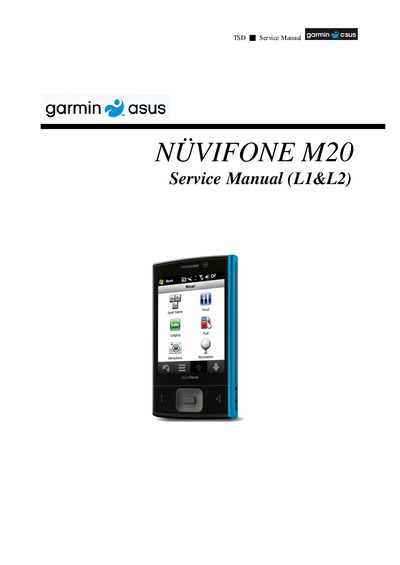
This service manual is intended for technicians who need to install, operate, maintain and repair the NUVIFONE M20 mobile phone. It includes safety guidelines, recommended tools, and detailed exploded diagrams.
The document covers disassembly and assembly steps, functional testing (motion sensor, keypad, camera, VGA camera, touch screen), and a full product specification sheet with dimensions, display, battery, connectivity and more.
| Dimension | 95.3252 × 12.8 mm |
|---|---|
| Color options | Black, Green, Red, Blue |
| Form factor | Bar |
| Display | 2.8" VGA 480 × 640, 85K TFT with touch lens |
| Camera | 3 Megapixel |
| Battery | 920 mAh Li‑ion |
| Standby time | 150‑200 hours |
| Talk time | 2‑3 hours |
| Connectivity | WLAN 802.11b/g, USB 2.0, Bluetooth 2.0 |
Use a U‑Torque screw driver (T5 type, torque set to 1.2 kg‑cm), tweezers, a plastic blade and an ESD static strap.
Turn the device to the four directions (up, down, left, right) and press “PASS” if the test shows OK, otherwise press “FAIL”.
Check that each keypad key registers correctly and that the associated LED lights; confirm with “YES” if it works.
Draw the characters “2” and “1” on the screen; if the lines appear correctly and are not broken, press “Yes”.