
This document is a user guide for the TL-WR340G/TL-WR340GD 54M Wireless Router, providing information on the features and characteristics of the product.
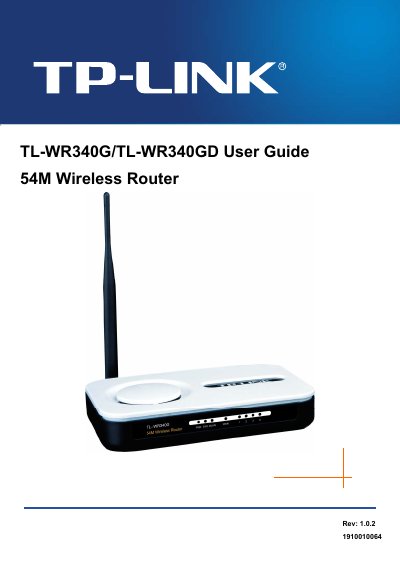
The TP‑Link TL‑WR340G/TL‑WR340GD is a 54Mbps wireless router designed for small‑office/home‑office networks. This user guide explains the router’s hardware features, installation steps, and how to configure wireless and wired connections.
The manual covers hardware installation, web‑based software configuration, security settings, advanced features such as port forwarding, DMZ, and virtual servers, as well as a FAQ section that answers common setup questions. This manual is written in Chinese.
| Frequency range | 2400 ~ 2483.5 MHz |
|---|---|
| Wireless data rates | 802.11b: 1‑11 Mbps; 802.11g: 6‑54 Mbps |
| Ports | 1 WAN 10/100 Mbps RJ45, 4 LAN 10/100 Mbps RJ45 (Auto‑MDI/MDIX) |
| Dimensions (L × W × H) | 4.17 × 4.01 × 1.10 in (160 × 102 × 28 mm) |
| Operating temperature | 0 °C ~ 40 °C (32 °F ~ 104 °F) |
| Storage temperature | -40 °C ~ 70 °C |
Connect the ADSL modem to the router’s WAN port, select “PPPoE” as the WAN connection type, enter your ISP username and password, and click “Connect”.
Log in to the router, go to the “WAN” submenu, select “Dynamic IP” as the WAN connection type, and save the settings.
In the router’s web interface, open the “DMZ” submenu under “Forwarding”, enable DMZ, enter the host’s LAN IP address, and save the configuration.
Change the router’s web‑management port to a value other than 80 (e.g., 88) under “Remote Management”, then configure the virtual server to use port 80 for your LAN web server.