
To use JoinNet remote tutoring platform, you need to install JoinNet software first, and then execute the test wizard to make sure the webcam, audio playback, microphone and network connection are normal.
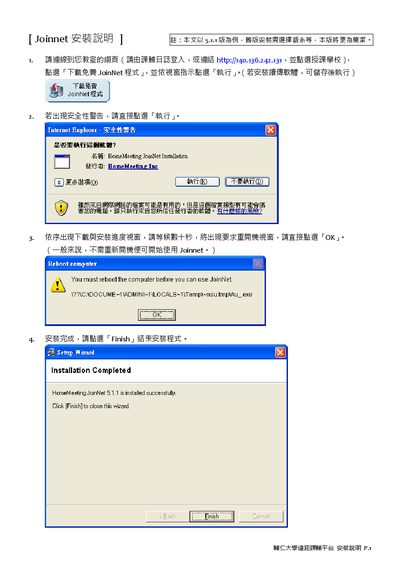
This guide walks users through downloading, installing, and configuring the JoinNet application from HomeMeeting Inc. It includes screenshots of the installer, notes on security warnings, and the final steps to finish the setup.
After installation, the manual describes how to verify webcam, audio, and network connectivity using the built‑in test functions, ensuring the software works correctly before use. This manual is written in Chinese.
| Software version | 5.1.1 |
|---|
Yes, you must reboot the computer before you can use JoinNet.
Run the webcam test in JoinNet; if you see the camera image, the webcam is functioning correctly.
Select the "声音播放测试" option and adjust the volume until you hear sound; the test confirms audio output.
Click the "网络过牧测试" button; JoinNet will automatically detect whether the computer can connect properly.