
Key facts
- Manuals
- 12
- Categories
- 1
- Languages
- ZH · EN
- Last added
- 2012-04-01
Featured 打印机 manuals
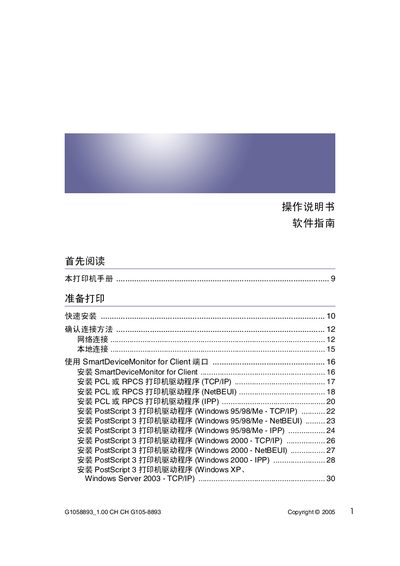
HP G1058893 Printer User Manual
This manual covers the complete setup of the HP G1058893 printer, including quick installation, driver installation for PCL, RPCS, and PostScript 3, and network configuration via TCP/IP, NetBEUI, IPP, USB, and Bluetooth. It also explains how to use the SmartDeviceMonitor software for client and admin, and provides detailed guidance for Windows, Mac OS, and network environments.
Additional sections describe printer menus such as Maintenance, System, Host Interface, and PDF, as well as monitoring tools like Web Image Monitor and telnet. The appendix lists bundled software, licensing information, and troubleshooting tips for common issues such as paper jams and error logs. This manual is written in Chinese.
Covers: 快速安装 · 网络连接 · USB 驱动程序安装 · Bluetooth 连接 · SmartDeviceMonitor 使用 · 维护菜单
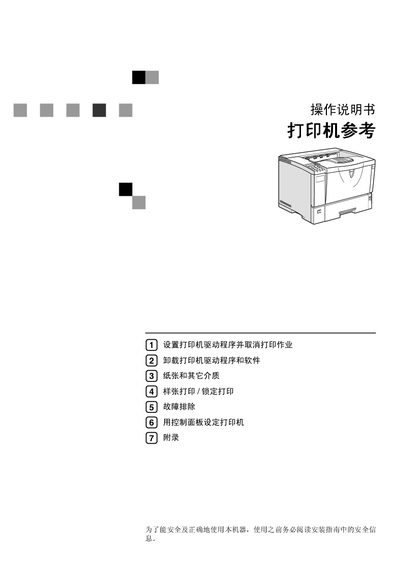
Printer Operating Manual
This manual provides step‑by‑step instructions for installing and uninstalling printer drivers for various Windows versions and Macintosh, as well as detailed guidance on using the printer’s control panel, adjusting settings, and performing routine maintenance. Safety warnings and proper handling of consumables are emphasized throughout the document.
Additional sections cover troubleshooting common error messages, replacing parts such as rollers and toner cartridges, and configuring advanced features like PCL, PostScript, and RPCS printing languages. The manual also includes reference tables for driver installation and a list of supported operating systems. This manual is written in Chinese.
Covers: Installation Guide · Driver Uninstallation · Control Panel Settings · Print and Copy Operations · Troubleshooting · Maintenance and Part Replacement
Printer Installation Guide
This guide walks you through the initial safety check, unpacking the printer and any optional 650‑sheet duo drawer, and preparing the installation area with proper clearance. It then details how to install the drawer, attach the dust cover, align the printer, and open the necessary panels and cartridges.
Later sections cover network configuration (pressing the button until the Network Setup page appears), installing the accompanying software, and completing the setup. For additional details, refer to the full User’s Guide referenced at the end of the document.
Covers: Safety Information and License Agreement · Unpacking the Printer and Components · Installation Clearance Requirements · 650‑Sheet Duo Drawer Installation · Dust Cover Installation · Printer Alignment and Placement

Kyocera FS-1016MFP User Manual
This manual covers all aspects of using the Kyocera FS-1016MFP multifunction printer, including machine components, paper loading, preparation steps, copy, scan, and print functions, as well as QLINK software usage and system settings. Detailed instructions guide users through installing supplies, configuring options, and performing routine tasks.
Safety warnings, energy‑saving features, maintenance procedures, and a full specifications section are also included to help ensure reliable and safe operation of the device. This manual is written in Chinese.
Covers: Machine Components · Paper Loading · Preparation · Copy Function · Scan Function · Print Function
Latest 打印机 manuals
Printer operating Manual(3)
This manual includes detailed instructions for operating and using the device
Printer Manual(1)
This manual provides detailed instructions on how to install, use and maintain the A series label printer, and provides some common troubleshooting methods.
Printer Manual
This is an introduction to a product of a certain brand
Printer Installation Guide(1)
This document is the Lexmark printer installation guide.
Printer Installation Guide
This document provides safety information and instructions for disposing of packaging materials before setting up the printer. It also includes a guide for installing the driver and utilities for the PagePro 1300W printer on a PC running Windows 2000/XP or Windows 98/Me. The printer features a USB connection.
HP G1058893 Printer User Manual
User Manual 289 pages · 5.4 MB · ZHThe HP G1058893 printer user manual provides installation, configuration, operation, and maintenance instructions.
Printer Operating Manual
User Manual 202 pages · 7 MB · ZHComprehensive Chinese user manual covering installation, driver setup, operation, and troubleshooting for a generic printer.
Printer Installation Guide
Installation Guide 34 pages · ENStep‑by‑step instructions for unpacking, installing, and configuring a printer, including safety checks, drawer setup, and network setup.
Printer Installation Guide2
Kyocera FS-1016MFP User Manual
User Manual 89 pages · 5.7 MB · ZHThe Kyocera FS-1016MFP user manual provides setup, operation, maintenance, and troubleshooting instructions for the multifunction printer.
G1058873 Printer Service Manual
Service Manual 112 pages · 2.7 MB · ZHMaintenance guide for the G1058873 laser printer covering consumables, cleaning, adjustments, and troubleshooting.
Printer Operating Manual
User Manual 16 pages · 2.7 MB · ZHOperating instructions for loading paper, configuring settings, connecting, and moving the printer.
Which document do I need?
User Manual
Day-to-day operation, settings and troubleshooting. Start here if the product is already set up.
Installation Guide
Mounting, wiring and first power-up. Read it before the hardware goes in.
Service Manual
Disassembly, diagnostics and part numbers, for repair.
Questions answered in 打印机 manuals
How do I install the printer driver using a USB connection?
Refer to the section "安装使用 USB 的打印机驱动程序" and follow the step‑by‑step instructions on page 56.
How can I change the port settings for SmartDeviceMonitor on the client side?
Open the SmartDeviceMonitor client, go to the port settings menu, and modify the port as described in the "更改 SmartDeviceMonitor for Client 的端口设置" section.
What must I review before starting the installation?
You must read the enclosed safety information sheet and the license agreement in the User's Guide and accept the terms before proceeding.
How far should the printer be placed from surrounding objects?
Leave a clearance of about 100 mm (3 in.) around the printer as shown in the illustration.
How do I load paper into the printer?
Place the paper into the paper tray as described in the "装纸" section.
How can I change the display language on the printer?
Use the language selection function to change the language shown on the information display screen.