
Key facts
- Manuals
- 1
- Languages
- EN
- Last added
- 2023-10-26
Featured Cengage Learning manuals
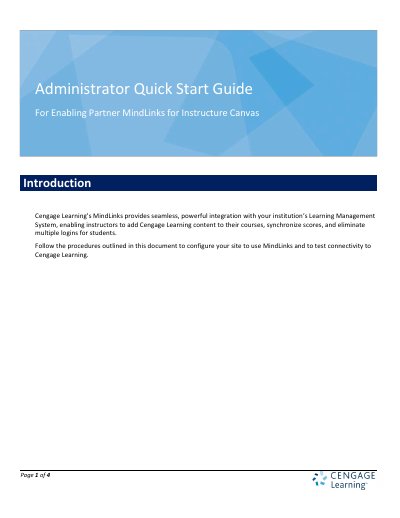
Cengage Learning MindLinks For Instructure Canvas Administrator Quick Start Guide
This guide helps administrators enable Cengage Learning’s MindLinks integration with Instructure Canvas. It includes steps to add the tool, configure settings using credentials from a Cengage email, and verify connectivity.
After installation, instructors can add Cengage content to courses and students can access it without multiple logins. Existing Cengage tools can be deleted after adding the new app.
Covers: Introduction · Add External Tool Provider · Verify Cengage Learning App · Previous Cengage Learning App
Latest Cengage Learning manuals
Cengage Learning MindLinks For Instructure Canvas Administrator Quick Start Guide
User Manual 4 pages · 1.1 MB · ENConfigure Cengage Learning's MindLinks integration with Instructure Canvas LMS to add content, sync scores, and eliminate student logins.
Which document do I need?
User Manual
Day-to-day operation, settings and troubleshooting. Start here if the product is already set up.
Questions answered in Cengage Learning manuals
How do I add the Cengage Learning MindLinks tool to Canvas?
Log in as an Administrator, navigate to the site account level, click Settings, select the Apps tab, click View App Configuration, click Add App, and complete the form with the Consumer Key, Shared Secret, and Configuration URL from the Cengage email.
From: Cengage Learning MindLinks For Instructure Canvas Administrator Quick Start Guide
How do I verify the Cengage Learning MindLinks tool is working?
Log in as a Teacher to a Canvas course, go to Settings, click the Navigation tab, drag the Cengage item from the hidden section to active navigation, click Save, then click Cengage. If no error appears, the test is complete.
From: Cengage Learning MindLinks For Instructure Canvas Administrator Quick Start Guide