
Key facts
- Manuals
- 1
- Languages
- EN
- Last added
- 2023-10-26
Featured Education Galaxy manuals
Education Galaxy Link with Google Classroom User Manual
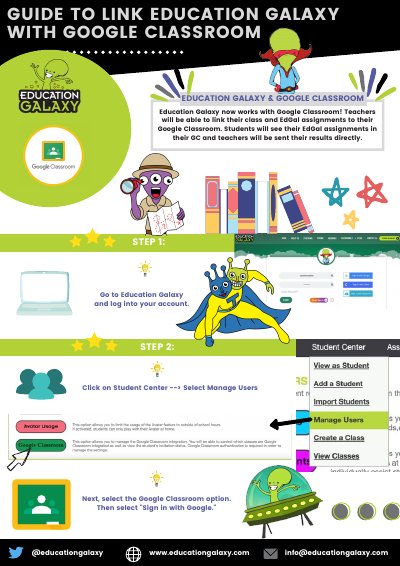
This guide explains how teachers can link Education Galaxy with Google Classroom. Students will see assignments in Google Classroom and teachers will receive results directly. The process involves navigating to Student Center, selecting Manage Users, and signing in with Google. Once linked, assignments appear in Google Classroom and grades sync to both platforms.
Teachers must allow permissions for Education Galaxy to sync with Google Classroom. After linking, assignments can be assigned in Education Galaxy and appear in Google Classroom for students to complete.
Covers: STEP 1: EDUCATION GALAXY & GOOGLE CLASSROOM · STEP 2: Manage Users and Google Classroom · STEP 3: Grant Permissions and Link Accounts
Latest Education Galaxy manuals
Education Galaxy Link with Google Classroom User Manual
User Manual 2 pages · 1.8 MB · ENStep-by-step guide to link Education Galaxy with Google Classroom for teachers and students.
Which document do I need?
User Manual
Day-to-day operation, settings and troubleshooting. Start here if the product is already set up.
Questions answered in Education Galaxy manuals
How do I link my Education Galaxy account with Google Classroom?
Go to Education Galaxy, click Student Center, select Manage Users, then choose Google Classroom and sign in with Google.
From: Education Galaxy Link with Google Classroom User Manual
What happens after students link their accounts?
Once linked, students will see assignments in Google Classroom and teachers will receive results directly.
From: Education Galaxy Link with Google Classroom User Manual