Key facts
- Manuals
- 1
- Languages
- EN
- Last added
- 2023-10-26
Featured Brevard Public Schools manuals
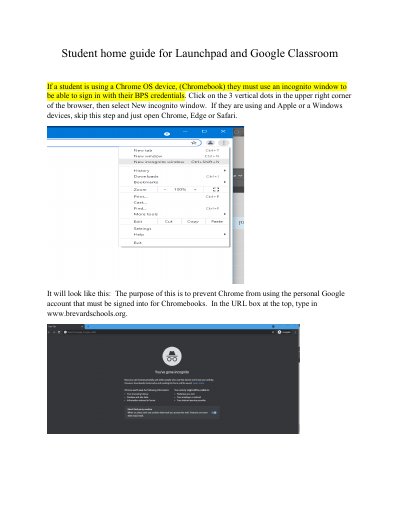
Brevard Public Schools Chromebook Launchpad and Google Classroom Guide
This guide explains how Chromebook users can access Brevard Public Schools' Launchpad and Google Classroom. It requires opening an incognito window to avoid using the personal Google account. Users must sign in with their student number and password, then navigate to Google Apps to access Classroom.
The guide also covers signing in with Microsoft credentials and navigating to My Drive and the Classroom app via the Waffle icon.
Covers: Accessing Launchpad · Signing in with Microsoft · Using Incognito Mode · Navigating to Google Classroom · Signing in with Organizational Account
Latest Brevard Public Schools manuals
Brevard Public Schools Chromebook Launchpad and Google Classroom Guide
User Manual 3 pages · 406 KB · ENStep-by-step guide for Chromebook users to access Launchpad and Google Classroom using incognito mode.
Which document do I need?
User Manual
Day-to-day operation, settings and troubleshooting. Start here if the product is already set up.
Questions answered in Brevard Public Schools manuals
Do I need to use incognito mode on a Chromebook?
Yes, to prevent Chrome from using the personal Google account that must be signed into for Chromebooks.
From: Brevard Public Schools Chromebook Launchpad and Google Classroom Guide
What should I type in the URL box?
Type www.brevardschools.org in the URL box at the top.
From: Brevard Public Schools Chromebook Launchpad and Google Classroom Guide