
Key facts
- Manuals
- 1
- Languages
- ZH
- Last added
- 2026-10-17
Featured Revopoint manuals
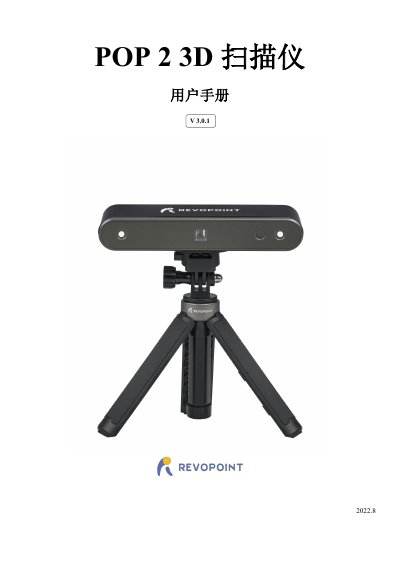
REVOPOINT POP 2 3D Scanner User Manual
The REVOPOINT POP 2 3D Scanner combines handheld and desktop scanner functions using dual-eye structured light technology. It features a dual-core ARM Cortex-A7 CPU and proprietary micro-projection chips to deliver high-precision point cloud data with a single-frame accuracy of 0.05mm. The device supports color scanning for direct 3D printing and includes intelligent algorithms to ensure smooth performance even on standard computers.
The manual details the setup process, including USB and Wi-Fi connections to various operating systems (Windows, Android, iOS, Mac). It guides users through the Revo Scan software interface, explaining how to configure scan modes for different objects (e.g., faces, dark objects, symmetrical items) and post-processing steps like meshing and texturing. Troubleshooting sections address common issues such as tracking loss and low point cloud density. This manual is written in Chinese.
Covers: Product Overview · Product Specifications · Packing List · Hardware Connection · Software Installation · Revo Scan User Interface
Latest Revopoint manuals
REVOPOINT POP 2 3D Scanner User Manual
User Manual 28 pages · 5.1 MB · ZHThis manual provides instructions for the REVOPOINT POP 2 3D scanner, covering hardware connection, software installation, scanning workflows, and…
Which document do I need?
User Manual
Day-to-day operation, settings and troubleshooting. Start here if the product is already set up.
Questions answered in Revopoint manuals
How do I connect the scanner to a mobile phone via Wi-Fi?
Connect the scanner to the phone via Wi-Fi using the default SSID 'POP2-REVO-XXXXXXXX' and password 'Revopoint3d'.
Can I scan dark or black objects?
Yes, use the 'Dark/Black Objects' scan mode, but you may need to treat high-gloss surfaces to make them diffuse before scanning.