
Key facts
- Manuals
- 1
- Languages
- EN
- Last added
- 2023-10-19
Featured Intec manuals
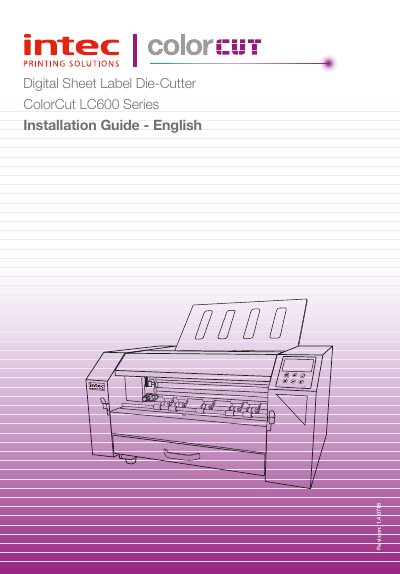
Intec ColorCut LC600 Sheet fed Label Cutter User Manual
This manual guides users through installing and operating the Intec ColorCut LC600 sheet-fed label cutter. It covers hardware setup, Wi-Fi hotspot configuration, software installation (ColorCut Pro), blade adjustment, and cutting operations. Safety precautions are emphasized, including handling the blade and ensuring proper grounding. The cutter supports media sizes from A4 to custom dimensions and integrates with CorelDRAW and Adobe Illustrator via plugins or standalone software.
The LC600 features a dual-grip feed system, Vision3 CCD sensor for automatic registration, and Wi-Fi live preview. It can handle up to 250 sheets and includes a concealed exit tray. The manual also explains how to calibrate the sensor, adjust blade depth, and use QR codes for job recognition.
Covers: Safety Information · Introduction · Hardware Specifications · Installation of the LC600 Cutter · Setting Up a Wi-Fi Hotspot · Software Installation - Intec ColorCut Pro
Latest Intec manuals
Intec ColorCut LC600 Sheet fed Label Cutter User Manual
User Manual 48 pages · 5.8 MB · ENUser manual for Intec ColorCut LC600 sheet-fed label cutter, covering setup, software, cutting, and safety.
Which document do I need?
User Manual
Day-to-day operation, settings and troubleshooting. Start here if the product is already set up.
Questions answered in Intec manuals
What media sizes does the ColorCut LC600 support?
It supports A4, A3, SRA3, and A3+ standard sizes, plus custom sizes from 150mm to 330mm wide and 190mm to 750mm long.
From: Intec ColorCut LC600 Sheet fed Label Cutter User Manual
How do I connect the LC600 to my computer?
Use the supplied USB cable to connect the cutter to your PC. Then check in the ColorCut Pro software that the cutter is detected.
From: Intec ColorCut LC600 Sheet fed Label Cutter User Manual