
Key facts
- Manuals
- 26
- Categories
- 1
- Languages
- EN · ZH
- Last added
- 2012-03-22
Featured Greatwall manuals
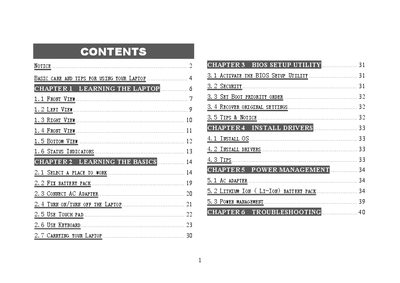
GreatWall Laptop User Manual
This user manual guides owners of GreatWall laptops through safe handling, basic operation, and system configuration. It covers topics such as caring for the laptop, using the keyboard, touch pad, and built‑in camera, as well as BIOS setup and driver installation.
Safety notices, power‑management tips, and detailed troubleshooting steps are provided for common issues like battery problems, display damage, and connectivity failures. Follow the instructions to maintain reliable performance and avoid damage.
Covers: Basic Care and Tips for Using Your Laptop · Learning the Laptop · BIOS Setup Utility · Install Drivers · Power Management · Troubleshooting
Greatwall Computer User Manual
The manual begins with safety and regulatory notices, including battery handling, laser product certification, and radio‑frequency interference warnings. It then describes unboxing, model identification, and the required operating environment such as temperature, humidity, and power specifications.
Subsequent sections cover connecting peripherals, installing the operating system and drivers, power‑on and power‑off procedures, and an appendix listing hazardous substance limits. The document emphasizes proper grounding, correct power usage, and advises against self‑repair to preserve warranty coverage. This manual is written in Chinese.
Covers: Safety Precautions · Unboxing and Inspection · Model Identification · Operating Environment · Using Your Computer · Cable Connections
Greatwall Computer Simple User Manual
This manual introduces the Greatwall computer, covering safety precautions, unboxing checks, and environmental requirements. It explains how to identify the model, verify accessories, and prepare the workstation.
The guide then details connecting peripherals, installing the operating system and drivers, power management, and handling hazardous materials. It also includes an appendix with RoHS compliance information and contact details for service. This manual is written in Chinese.
Covers: Safety Precautions · Unboxing Checklist · Computer Introduction · Using Your Computer · Cable Connections · Operating System and Driver Installation
Shenzhou Notebook User Manual
The manual explains how to safely use and maintain your Shenzhou notebook, covering topics such as handling precautions, BIOS configuration, battery management, and upgrading components. It also includes troubleshooting steps and regulatory information.
Key sections include symbols and conventions, protection guidelines, BIOS password settings, power and battery management, upgrade procedures, and detailed appendices with service and warranty details. This manual is written in Chinese.
Covers: Symbols and Conventions · Protecting Your Notebook · BIOS Settings and Password Protection · Battery Power and Power Management · Upgrading Your Computer · Troubleshooting
Latest Greatwall manuals
GreatWall Laptop User Manual
User Manual 43 pages · 1.3 MB · ENThe manual explains basic care, operation, BIOS setup, driver installation, power management and troubleshooting for GreatWall laptops.
Greatwall Computer User Manual
User Manual 10 pages · 1 MB · ZHThis Greatwall Computer user manual provides safety guidelines, setup steps, and basic operation information for generic models.
Greatwall Computer Simple User Manual
User Manual 10 pages · 1 MB · ZHThe Greatwall Computer Simple User Manual provides safety guidelines, setup steps, and basic operation instructions for the desktop system.
Shenzhou Notebook User Manual
User Manual 97 pages · 1.7 MB · ZHThis user manual provides operating instructions, safety guidelines, and maintenance information for Shenzhou notebook computers.
GreatWall Laptop User Manual
User Manual 40 pages · 888 KB · ZHThe GreatWall laptop user manual provides setup, BIOS, software installation, power, safety, and troubleshooting guidance.
GreatWall Laptop User Manual
User Manual 14 pages · 2.2 MB · ZHThis user manual provides safety guidelines, setup instructions, and basic operation information for GreatWall laptops.
Greatwall Computer User Manual
User Manual 62 pages · 7.3 MB · ZHThis manual provides usage, safety, installation, and maintenance guidelines for Greatwall computers.
GreatWall Laptop Simple User Manual
User Manual 16 pages · 2.2 MB · ZHA concise Chinese user manual for GreatWall laptops covering safety, setup, and basic operation.
Greatwall Laptop User Manual
User Manual 44 pages · 1.4 MB · ZHThis manual provides safety guidelines, hardware overview, BIOS setup, software installation, power management, and troubleshooting for Greatwall laptops.
Greatwall Laptop User Manual
User Manual 42 pages · 1.1 MB · ZHThe Greatwall laptop user manual provides setup, operation, BIOS, software installation, power management and troubleshooting guidance.
Great Wall Computer User Manual
User Manual 10 pages · 1.2 MB · ZHThe Great Wall Computer User Manual provides safety guidelines, setup steps, and maintenance instructions for the desktop.
Great Wall Computer Owner's Manual
User Manual 10 pages · 1.1 MB · ZHThis owner's manual provides safety guidelines, setup steps, and basic operation instructions for Great Wall computers.
Great Wall Computer User Manual
User Manual 10 pages · 1022 KB · ZHThe Great Wall Computer User Manual provides safety, setup, and operating instructions for Great Wall PCs.
Great Wall Computer User Manual
User Manual 10 pages · 1 MB · ZHThe Great Wall computer user manual provides safety warnings, setup steps, operation guidance, and disposal instructions for the PC.
GreatWall Laptop User Manual
User Manual 20 pages · 2.1 MB · ZHThe GreatWall laptop user manual provides safety guidelines, installation steps, feature descriptions and technical specifications.
- 1
- 2
Which document do I need?
User Manual
Day-to-day operation, settings and troubleshooting. Start here if the product is already set up.
Questions answered in Greatwall manuals
How should I clean the laptop?
Power off the laptop, remove the battery pack, disconnect the AC adapter, then use a soft cloth moistened with water; do not use liquid or aerosol cleaners.
What should I do if the laptop does not operate normally?
Refer to the Troubleshooting section (page 40) for detailed steps on diagnosing and fixing the problem.
What should I do if the computer emits an unusual smell or smoke?
Immediately shut off the power switch, unplug the power cord, and contact a professional repair service.
How do I connect the keyboard and mouse safely?
Make sure the computer and monitor are powered off, then plug the keyboard and mouse into the appropriate ports (USB or dedicated connectors).
How should I connect the keyboard and mouse?
Connect the keyboard and mouse to the appropriate ports while the computer is powered off; USB keyboards and mice can be plugged into any USB socket.
What must I do if the computer emits an unusual smell or smoke?
Immediately turn off the power switch, unplug the power cord, and contact a professional repair service.