
Key facts
- Brand
- Symbol
- Model
- MC50
- Industry
- Electronics
- Documents
- 3
- Languages
- ZH
- Last added
- 2012-02-23
Start here
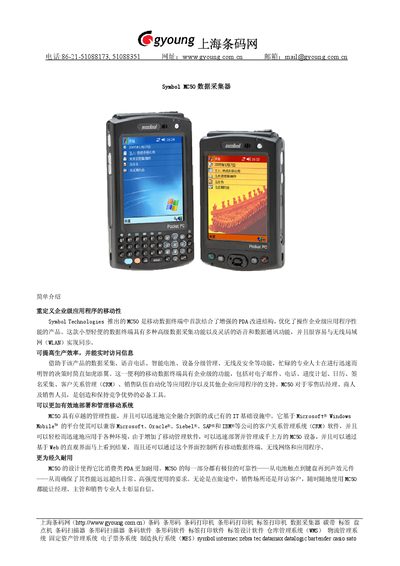
Symbol MC50 Data Collector User Manual
The Symbol MC50 is a lightweight mobile data terminal with advanced data capture, voice, and wireless capabilities. It runs on Microsoft Windows Mobile 2003 and supports enterprise applications such as email, CRM, and scheduling.
The manual includes physical characteristics, hardware specifications, supported barcode symbologies, imaging options, and regulatory information, helping users deploy and manage the device in various environments. This manual is written in Chinese.
Symbol MC50 specifications
| Dimensions | 12.1 cm H x 7.5 cm W x 2.4 cm D |
|---|---|
| CPU | Intel XScale 520 MHz |
| Operating System | Microsoft Windows Mobile 2003 Second Edition |
| Memory | 64 MB RAM, 64 MB ROM |
| Battery | Rechargeable Li‑ion 3.7 V, 1560 mAh |
| Wireless LAN | IEEE 802.11b (up to 11.5 Mbps) |
| Interfaces | RS‑232, USB |
All Symbol MC50 documents by type
Day-to-day operation, settings and troubleshooting. Start here if the product is already set up.
Questions answered in these manuals
What operating system does the MC50 run?
It runs Microsoft Windows Mobile 2003 Second Edition.
What wireless connectivity is supported?
The device supports IEEE 802.11b WLAN for data and voice communication.
What operating system does the Symbol MC50 run?
It runs Microsoft Windows Mobile 2003 Second Edition.
Which wireless standard is supported by the MC50?
The device supports IEEE 802.11b WLAN (Spectrum24).
How do I activate the scanning mode?
Press the G key once to activate the scanning mode; press it again to lock the mode, and a third press to unlock.
From: Symbol MC50 User Manual
How can I charge the MC50 battery?
Use the charging dock to charge the battery; the indicator will show when the battery is charging.
From: Symbol MC50 User Manual