
Key facts
Start here
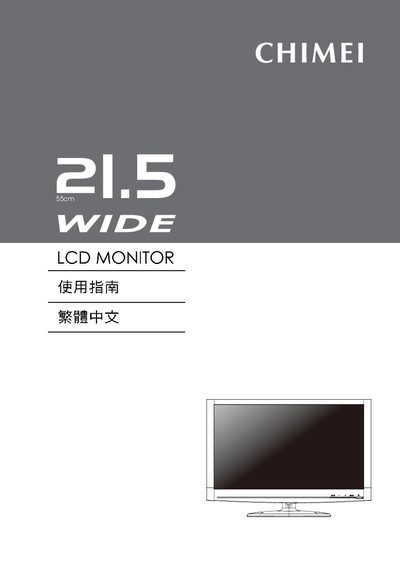
Chimei 21.5WIDE Monitor User Manual
This manual explains how to safely set up the Chimei 21.5WIDE LCD monitor, including power‑saving mode activation, VESA Plug‑and‑Play installation, and proper grounding. It also covers recommended placement, cleaning, and storage to maintain image quality and longevity.
The guide details the on‑screen display (OSD) functions, auto‑adjustment, input source selection, and troubleshooting procedures. Users can adjust brightness, contrast, and color settings via the MENU, +, and – keys, and learn how to reset the monitor or diagnose common issues such as no signal or abnormal LED indicators. This manual is written in Chinese.
Chimei 21.5WIDE specifications
| Maximum supported resolution | 1920 × 1080 |
|---|---|
| LED indicator colors | Blue = normal, Orange = power‑saving, Off = power off |
| VESA Plug‑and‑Play compatibility | Supported |
| DDC/EDID support | Display Data Channel (DDC) and Extended Display Identification Data (EDID) |
| Power‑saving automatic switch | Switches to low‑power mode after inactivity |
All Chimei 21.5WIDE documents by type
Day-to-day operation, settings and troubleshooting. Start here if the product is already set up.
Questions answered in these manuals
How does the monitor enter power‑saving mode?
After a period of inactivity the monitor automatically switches to a low‑power mode to save energy.
How can I adjust picture settings with the OSD?
Press the MENU button to open the OSD, then use the + and – keys to change settings; hold MENU while powering on to lock or unlock the OSD.
How do I adjust the monitor's OSD settings?
Press the MENU button and use the + or – keys to navigate and change OSD options, then press EXIT to save.
How can I perform an automatic screen adjustment?
Press the Auto/Source button; if held for more than three seconds, the monitor will run an automatic adjustment.