
Key facts
Start here
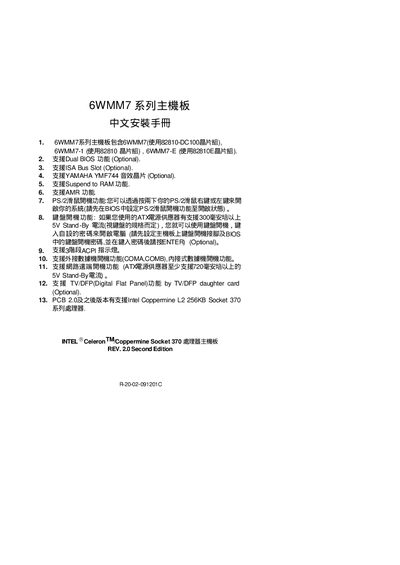
G.B.T Technology Trading GA-6WMM7 Motherboard Installation Guide
This guide provides instructions for installing the GA-6WMM7 motherboard, which is available in three variants (6WMM7, 6WMM7‑1, 6WMM7‑E) using the 82810‑DC100, 82810, or 82810E chipsets. It lists optional features such as Dual BIOS, ISA bus slot, Yamaha YMF744 audio, Suspend‑to‑RAM, AMR, and support for Intel Coppermine Socket 370 CPUs.
The document details quick‑install steps, CPU speed and multiplier settings via BIOS, jumper configurations (JP17‑JP20, GN, HD, etc.), and special functions like PS/2 keyboard power‑on and remote power‑on. A Declaration of Conformity at the end confirms compliance with EMC and safety standards. This manual is written in Chinese.
6WMM7 specifications
| Chipset (6WMM7) | 82810-DC100 |
|---|---|
| Chipset (6WMM7‑1) | 82810 |
| Chipset (6WMM7‑E) | 82810E |
| Dual BIOS | Optional |
| ISA Bus Slot | Optional |
| Audio Chip | YAMAHA YMF744 (Optional) |
| Supported CPUs | Intel Coppermine L2 256KB Socket 370 |
Source: G.B.T Technology Trading GA-6WMM7 Motherboard Installation Guide
All 6WMM7 documents by type
Mounting, wiring and first power-up. Read it before the hardware goes in.
Questions answered in these manuals
How can I enable the PS/2 keyboard power‑on function?
Set the PS/2 keyboard power‑on option in the BIOS, then press the right or left button on the PS/2 keyboard to start the system.
From: G.B.T Technology Trading GA-6WMM7 Motherboard Installation Guide
Which jumpers are used for the quick‑install guide?
The quick‑install guide uses jumpers JP17‑JP20 (optional) for CPU/SDRAM settings and GN for the power‑saving function.
From: G.B.T Technology Trading GA-6WMM7 Motherboard Installation Guide
How do I enable PS/2 keyboard power‑on?
Set the PS/2 power‑on option in the BIOS to enabled, then you can start the system using the PS/2 keyboard.
What does the Reset jumper do?
Shorting the Reset jumper forces a reset without turning off the power, allowing the system to restart immediately.