
Key facts
- Manuals
- 4
- Categories
- 2
- Languages
- ZH
- Last added
- 2012-03-13
Featured 3G manuals
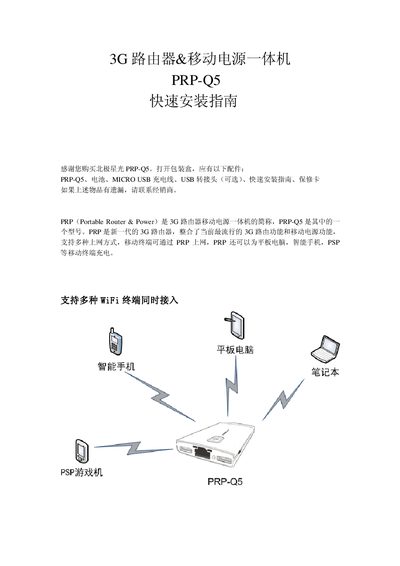
Poray PRP-Q5 3G Router & Power Bank Quick Start Guide
This guide begins with the package contents and a description of the PRP‑Q5 device, including the DC 5 V power input, reset/Ethernet switch, LED indicators, USB charging port, WAN/LAN RJ45 port, 3G interface and power switch. It also details the meaning of the status LEDs for charging, battery level and network activity.
Installation steps cover battery insertion, connecting a 3G USB card, powering on the router, connecting to the Wi‑Fi network (SSID "PORAY PRP Q5"), accessing the web management interface at 192.168.100.1, and configuring internet access (3G, DHCP, static IP or PPPoE). The guide finishes with troubleshooting tips and a short FAQ. This manual is written in Chinese.
Covers: Package Contents · Device Overview · Power Input and Charging · LED Indicators · Reset / Ethernet Switch · USB Charging Port
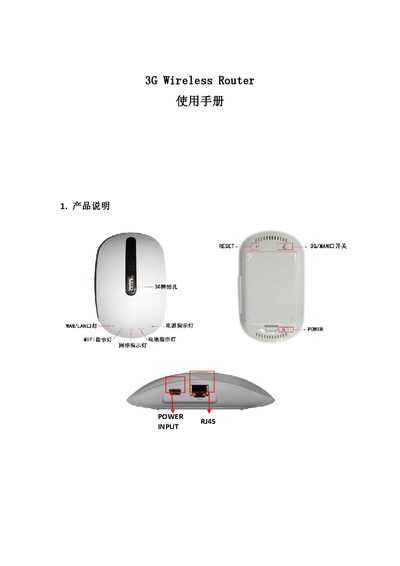
MIFI MIFI-H1 3G Wireless Router User Manual
This manual covers the basic operation of the MIFI MIFI-H1 3G Wireless Router, including power and battery LEDs, WAN/LAN status lights, and the reset function. It explains how to connect the router using a 3G data card or wired Ethernet and how to switch between 3G and WAN modes.
Detailed instructions are provided for accessing the web configuration interface (default 192.168.1.17, admin/admin), configuring wireless security (WEP, WPA‑PSK, WPA2‑PSK), managing user accounts, and performing firmware upgrades. The document also lists the physical ports and supported interfaces such as a standard USB 2.0 port for 3G data cards. This manual is written in Chinese.
Covers: LED Indicator Description · Physical Interfaces · Reset Function · Installation Guide · Network Configuration · Wireless Settings
3G Wireless Router User Manual
This manual provides step‑by‑step instructions for installing and configuring the 3G Wireless Router. It includes details on hardware layout, front‑ and rear‑panel connectors, and the web‑based management interface.
The guide explains WAN and LAN settings, DHCP server configuration, NAT/NAPT, DMZ, wireless security options, and troubleshooting procedures such as resetting the device and updating firmware. This manual is written in Chinese.
Covers: 主要特性 · 硬件描述 · 前面板 · 后面板 · WAN设置 · LAN口设置
3G Mini DVR User Manual
This guide provides step‑by‑step instructions for using the 3G Mini DVR. It describes how to power on the device, insert a USIM card, and connect a micro‑SD card, then explains the LED status indicators for network and battery conditions.
The document also details remote operation via a 3G phone, including video monitoring, voice listening, SMS‑based recording, alarm configuration, motion‑detection sensitivity, and using the unit as a modem. Troubleshooting tips for password entry, SD‑card management and low‑battery alerts are included. This manual is written in Chinese.
Covers: 功能简介 · 规格 · 部件说明 · 开机与电源 · 视频监控操作 · 密码与报警设置
Latest 3G manuals
Poray PRP-Q5 3G Router & Power Bank Quick Start Guide
Quick Start Guide 13 pages · 912 KB · ZHThe Poray PRP‑Q5 Quick Start Guide explains how to install, power, and configure the 3G router and power‑bank device.
MIFI MIFI-H1 3G Wireless Router User Manual
User Manual 8 pages · 875 KB · ZHThe MIFI MIFI-H1 3G Wireless Router User Manual provides setup, LED indicator explanations, network configuration, and management instructions.
3G Wireless Router User Manual
User Manual 28 pages · 387 KB · ZHChinese user manual for the 3G Wireless Router covering setup, configuration, and management features.
3G Mini DVR User Manual
User Manual 8 pages · 192 KB · ZHThe manual explains how to set up, operate and configure the 3G Mini DVR, covering video monitoring, SMS commands, alarm settings and power management.
Which document do I need?
Quick Start Guide
The shortest path to a working setup, usually only a few pages.
User Manual
Day-to-day operation, settings and troubleshooting. Start here if the product is already set up.
Questions answered in 3G manuals
Why can't 3G dial‑up succeed?
Check that the 3G card is supported, the SIM card contacts are good, no PIN lock is set, and the router’s 3G parameters are correct.
From: Poray PRP-Q5 3G Router & Power Bank Quick Start Guide
Why does the PRP sometimes fail to power on?
Turn the power switch to ON and short the power‑input port to the USB‑OUT port with a charging cable.
From: Poray PRP-Q5 3G Router & Power Bank Quick Start Guide
How do I reset the router?
Short‑press the RESET button to restart the gateway; long‑press to restart and restore factory settings.
What is the default address for the web configuration page?
Enter 192.168.1.17 in a web browser to open the router’s configuration interface.
How do I reset the router to factory defaults?
Press and hold the RESET button for about 5 seconds until the device restarts.
What wireless encryption methods are supported?
The router supports 64/128‑bit WEP, WPA‑PSK, WPA2‑PSK, TKIP and AES encryption.