
Key facts
- Manuals
- 4
- Languages
- EN · ZH
- Last added
- 2012-03-21
Featured Ipcam manuals
KYE Systems IPCam SECURE300W User Manual
This manual introduces the IPCam SECURE300W, a standalone IP camera with a built‑in CPU and web server for remote video monitoring. It details the hardware layout, network connectivity options, and supported operating systems.
The guide covers step‑by‑step installation, security settings, web‑based configuration, and the IPView SE utility for remote management, plus troubleshooting information and technical specifications.
Covers: Introduction · Features and Benefits · Package Contents · System Requirements · Hardware Overview · Hardware Installation
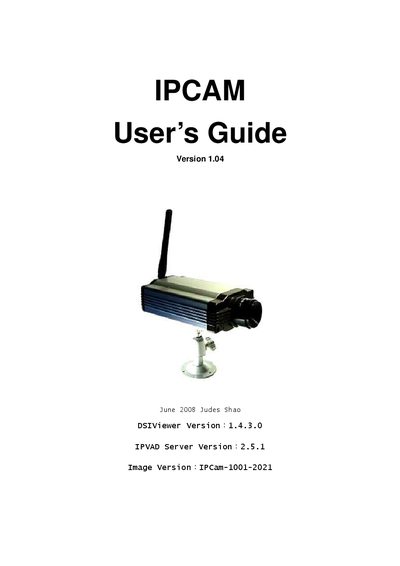
Davicom IPCAM-1001 IP Camera User Manual
This manual covers everything needed to set up and operate the Davicom IPCAM-1001. It begins with a product introduction, lists the package contents, and details the minimum system requirements. Installation steps for hardware and software are described, including connecting the camera to a network, powering the device, and configuring the DSIViewer client.
Further sections explain how to configure network settings, view live video, record footage, and use advanced features such as motion detection, DDNS, and wireless security. A comprehensive FAQ at the end addresses common issues like ActiveX plug‑in installation, wireless connectivity problems, and firmware upgrades.
Covers: Product Introduction · Installation · Software Installation · Configuration · Viewing and Recording · Wireless Setup
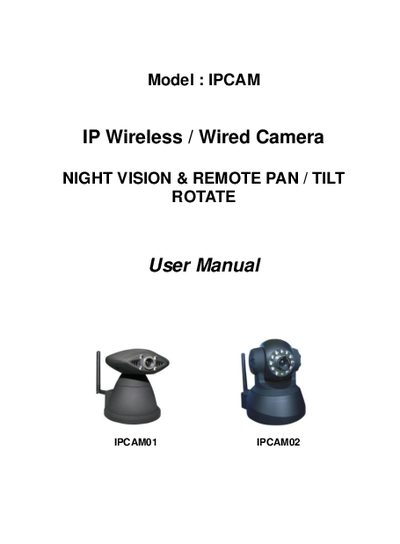
IPCAM IPCAMO1/2 User Manual
This manual introduces the IPCAM IPCAMO1/2, a wireless and wired IP camera featuring a 1/4" color CMOS sensor, night‑vision LEDs, and remote pan/tilt/rotate capability. It explains the hardware components, required accessories, and basic specifications.
The guide covers software installation, network configuration, DDNS setup, motion detection, alarm I/O, and firmware upgrade procedures. Detailed troubleshooting steps and FAQ sections help resolve common connectivity and performance issues.
Covers: Welcome · Features · Packing List · Hardware Instruction · Software Installation · Network Configuration
ZyX IPCAM User Manual
This manual covers safety precautions, proper handling, and installation requirements for the ZyX IPCAM. It explains how to connect power and network cables, configure network settings, and perform initial setup.
The document also details the camera’s features, such as built‑in web server, video and audio codecs, SD‑card storage, alarm inputs, and remote management functions, and includes a technical specifications table and a FAQ section. This manual is written in Chinese.
Covers: Safety Precautions · Parts and Functions · Power and Network Connection · Network Configuration · Web Interface Usage · Video and Audio Settings
Latest Ipcam manuals
KYE Systems IPCam SECURE300W User Manual
User Manual 107 pages · 3.6 MB · ENThe KYE Systems IPCam SECURE300W user manual explains installation, configuration, and operation of the network‑enabled IP camera.
Davicom IPCAM-1001 IP Camera User Manual
User Manual 38 pages · 805 KB · ENThe Davicom IPCAM-1001 user manual provides installation, configuration, and troubleshooting instructions for the IP camera.
IPCAM IPCAMO1/2 User Manual
User Manual 29 pages · 1.2 MB · ENThe IPCAM IPCAMO1/2 User Manual provides setup, configuration, and operation instructions for the wireless/wired IP camera with night vision and pan/tilt.
ZyX IPCAM User Manual
User Manual 36 pages · 1.5 MB · ZHThe ZyX IPCAM user manual provides safety guidelines, installation steps, network configuration, and feature specifications for the camera.
Which document do I need?
User Manual
Day-to-day operation, settings and troubleshooting. Start here if the product is already set up.
Questions answered in Ipcam manuals
How many users can be configured on the IPCam SECURE300W?
Up to 64 users with individual names and passwords can be set, each with privilege settings.
How do you reset the camera to factory defaults?
Press the reset button continuously for three seconds; the Power LED will flash and the device will revert to default settings.
Why can't I view video on the IPCAM web page?
You need to install the ActiveX plug‑ins before the video or image can be displayed.
What should I do if the wired mode works but the wireless mode fails?
Configure the wireless settings to match the router’s WEP/WPA configuration.
How do I reset the camera to factory defaults?
Press and hold the RESET BUTTON for a few seconds, then release the power button; the camera will revert to factory settings.
What are the default administrator login credentials?
The default username is admin and the password is blank (no password).