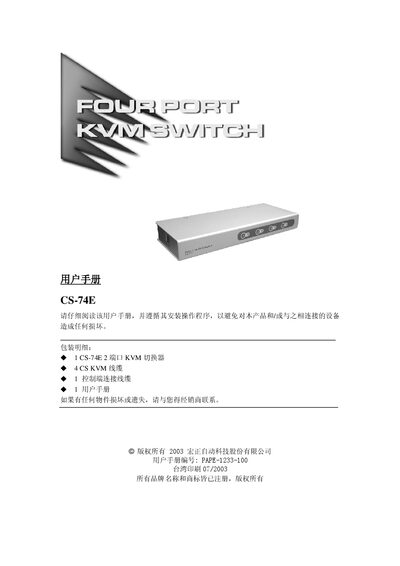
User manual for the CS-74E 2‑port KVM switch by 宏正自动科技股份有限公司, covering installation, operation, and troubleshooting.
About this manual
The CS-74E KVM switch lets a single keyboard, mouse and monitor control up to four computers. It uses custom SPHD‑15 connectors to reduce cable clutter and offers both manual port buttons and hot‑key combinations for switching.
Installation is straightforward: connect the supplied cables to the control and CPU ports, optionally attach an external DC9V power adapter, and follow the hot‑key or button procedures to select the active computer. The manual also includes hardware requirements, specifications, and a troubleshooting guide. This manual is written in Chinese.
What's inside
- Overview
- Features
- Hardware Requirements
- Cables
- Components
- Installation
- Operation
- Hotkey Table
- Product Specifications
- Troubleshooting
Specifications
| CPU ports | 4 |
|---|
| CPU connectors | 4 x SPHD‑15 female (yellow) |
|---|
| Control connector | 1 x SPHD‑15 male (yellow) |
|---|
| LED indicators | 4 (green) per port |
|---|
| Keyboard interface | PS/2 emulation |
|---|
| Scan interval | 5 seconds |
|---|
| Operating temperature | 0‑50 °C |
|---|
| Storage temperature | -20‑60 °C |
|---|
| Humidity | 0‑80 % RH, no condensation |
|---|
| Weight | 0.33 kg |
|---|
| Dimensions (L×W×H) | 12.5 × 8 × 2.5 cm |
|---|
| Maximum video resolution | 2048 × 1536 (DDC2B) |
|---|
| Power | No external power required (optional DC9V adapter) |
|---|
Frequently asked questions
How do I manually select a port on the CS‑74E?
Press the port selection button on the front panel to switch the KVM to the desired computer; the corresponding LED will light up.
What is the hot‑key sequence to activate a port?
Hold the Num Lock key, then press and release the asterisk (*) or minus (‑) key within 1.5 seconds, then release Num Lock.
What is the automatic scan interval?
The scanner switches between ports every 5 seconds when automatic scan mode is enabled.