
Key facts
- Manuals
- 4
- Languages
- ZH
- Last added
- 2026-10-03
Featured PFU manuals
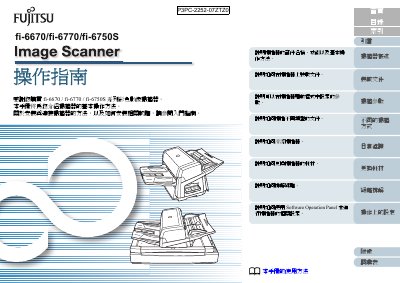
PFU fi-6670/fi-6770/fi-6750S Scanner Operation Manual
The PFU fi‑6670/fi‑6770/fi‑6750S series are color image scanners equipped with an Automatic Document Feeder (ADF) and, for the fi‑6770 and fi‑6750S models, a flatbed platform. This operation manual provides step‑by‑step instructions for using the Software Operation Panel, loading documents, setting scan parameters, and performing routine maintenance.
Key sections cover loading documents, configuring TWAIN, ISIS, and ScandAll PRO drivers, different scanning methods (single‑sided, double‑sided, large‑format), consumable replacement, cleaning procedures, and troubleshooting common issues such as paper jams and error messages. This manual is written in Chinese.
Covers: Scanner Overview · Loading Documents · Scanning Parameters · Different Scanning Methods · Daily Maintenance · Replacing Consumables
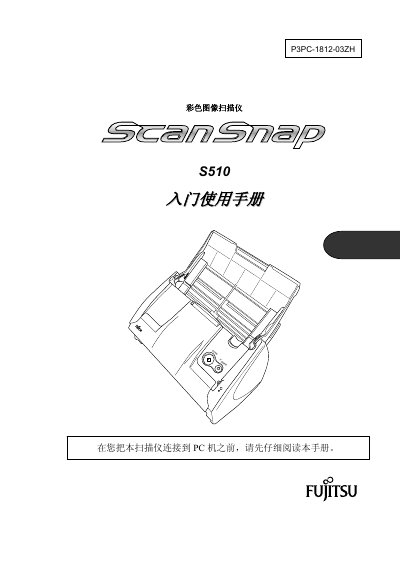
PFU ScanSnap S510 Scanner User Manual
This manual provides step‑by‑step instructions for preparing, connecting, and using the ScanSnap S510 colour image scanner. It covers software installation, scanning procedures, and how to manage scanned files with ScanSnap Manager, CardMinder and ABBYY FineReader.
Safety warnings, daily maintenance tips, and detailed instructions for replacing consumables such as the pressure roller and paper feed rollers are also included, along with FCC and CE compliance information. This manual is written in Chinese.
Covers: Introduction · Preparation · Connecting the scanner · Software installation · Scanning operation · Troubleshooting
PFU ScanSnap P3PC-4862-12ZHZ2 User Manual
This guide provides step‑by‑step instructions for using the ScanSnap P3PC-4862-12ZHZ2 scanner on macOS, including how to perform scans, select operations from the quick menu, and manage scanned images with ScanSnap Organizer and CardMinder.
It also explains how to save scanned data to mobile devices, cloud services such as Dropbox, Evernote, Google Drive, and Salesforce, create searchable PDFs, and configure personal settings. Additional sections cover using the scanner as a copier, connecting to wireless LAN (iX500/iX100), and automatic application connections. This manual is written in Chinese.
Covers: Safety Information · How to Scan · Managing Scanned Images · Creating Searchable PDF Files · Saving Data to Cloud Services · Personal Settings
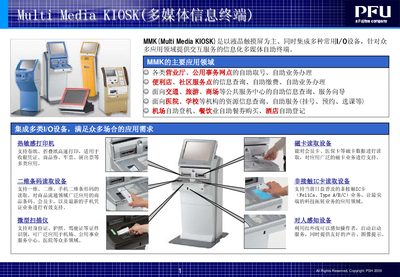
PFU MMK Multimedia Kiosk User Manual
The PFU MMK (Multi‑Media Kiosk) is a touchscreen‑based self‑service terminal that integrates a variety of peripherals such as thermal printers, barcode readers, scanners, magnetic‑card readers and contact‑less IC‑card readers. It is intended for use in public service locations like ticketing halls, convenience stores, hospitals, schools, airports and hotels.
The Kiosk Service Platform 3.0 provides automatic power management, system security, log monitoring, and a command‑line interface for developers to control I/O devices, run the whole system, record logs, handle errors and call external DLLs. A PC‑based simulation tool helps developers test and debug applications before deployment. This manual is written in Chinese.
Covers: Application Areas · Supported Peripherals · Kiosk Service Platform 3.0 Features · Automatic Power Management · System Security and User Management · Command‑Line Interface for Developers
Latest PFU manuals
PFU fi-6670/fi-6770/fi-6750S Scanner Operation Manual
User Manual 177 pages · 7.3 MB · ZHThis manual explains how to operate, maintain, and troubleshoot the PFU fi‑6670/fi‑6770/fi‑6750S color image scanners.
PFU ScanSnap S510 Scanner User Manual
User Manual 29 pages · 2.9 MB · ZHThe PFU ScanSnap S510 scanner user manual explains setup, operation, troubleshooting and consumable replacement.
PFU ScanSnap P3PC-4862-12ZHZ2 User Manual
User Manual 125 pages · 6.4 MB · ZHUser manual for the PFU ScanSnap P3PC-4862-12ZHZ2 scanner covering scanning, image management, cloud saving, and device settings.
PFU MMK Multimedia Kiosk User Manual
User Manual 3 pages · 738 KB · ZHUser manual for PFU's MMK multimedia kiosk covering features, supported devices, and service platform functions.
Which document do I need?
User Manual
Day-to-day operation, settings and troubleshooting. Start here if the product is already set up.
Questions answered in PFU manuals
How do I load documents into the scanner?
Use the ADF for automatic feeding of multiple pages or the flatbed platform for single sheets and books.
What scanning drivers are supported?
The scanner works with TWAIN, ISIS, and PFU’s ScandAll PRO software.
How do I start a scan with the ScanSnap S510?
Press the [SCAN] button on the scanner; the document is converted to a searchable PDF.
What must I do before connecting the scanner to my PC?
Install ScanSnap Manager first; only then connect the USB cable to the computer.
How can I connect ScanSnap to a wireless LAN?
You can connect the iX500 or iX100 models to a wireless LAN by installing ScanSnap Manager on a computer and following the wireless LAN setup instructions.
What should I read before using the ScanSnap device?
You should read the Safety Information section of the guide before using the ScanSnap scanner.