
Key facts
- Manuals
- 2
- Languages
- ZH
- Last added
- 2026-09-30
Featured BarTender manuals
BarTender ZMIN X1i Printer Driver User Guide
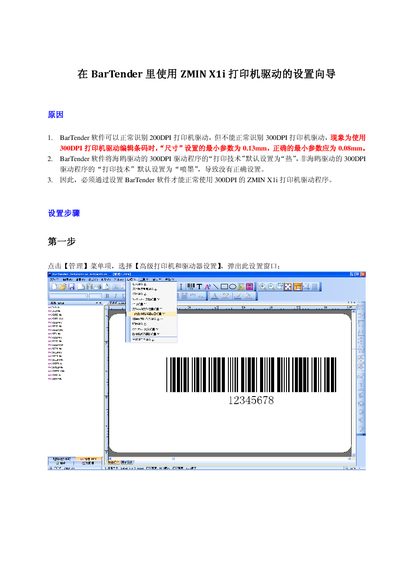
This guide explains how to set up the ZMIN X1i printer driver within BarTender so that the 300 DPI driver is recognized and works correctly. It covers selecting the printer, overriding default settings, and adjusting print technology and photoelectric size.
Follow the four configuration steps: select the ZMIN X1i printer, enable "Override default settings", set the print technology to "heat", and adjust the horizontal and vertical photoelectric size to 3.3 mils. After confirming the changes, the driver operates normally. This manual is written in Chinese.
Covers: Setup Wizard Overview · Select ZMIN X1i Printer · Override Default Settings · Configure Print Technology · Adjust Photoelectric Size · Finish Configuration
Latest BarTender manuals
BarTender ZMIN X1i Printer Driver User Guide
User Manual 5 pages · 1.3 MB · ZHStep‑by‑step guide for configuring the ZMIN X1i printer driver in BarTender software.
BarTender The World's Leading Label RFID Sotfware
Which document do I need?
User Manual
Day-to-day operation, settings and troubleshooting. Start here if the product is already set up.
Questions answered in BarTender manuals
Why does BarTender not recognize the 300 DPI ZMIN X1i driver?
Because BarTender defaults the 300 DPI driver’s print technology to "thermal" instead of the required "heat" setting.
How do I set the photoelectric size for the ZMIN X1i driver?
Open the driver settings, enable "Override default settings", then set both the horizontal and vertical photoelectric size to 3.3 mils and confirm.