
Key facts
- Manuals
- 3
- Languages
- ZH
- Last added
- 2026-09-30
Featured WorkPDF manuals
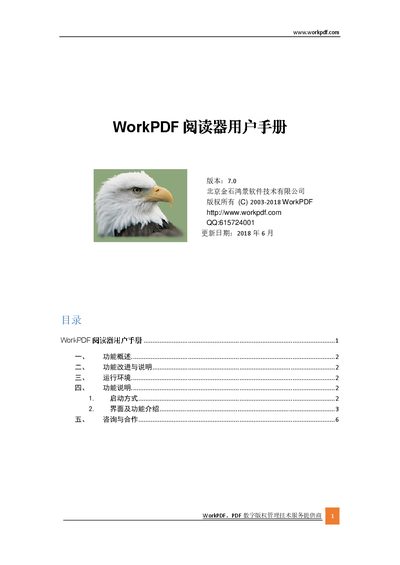
WorkPDF 7.0 PDF Reader User Manual
WorkPDF is a Chinese‑developed PDF reader and editor that provides creation, editing, watermarking, digital signing, encryption, and digital rights management for PDF documents. The software runs on Windows and can be launched as a standalone application or embedded in Internet Explorer, and it offers a second‑development interface for integration with other systems.
The manual covers a functional overview, improvements over previous versions, system requirements, startup methods, detailed interface description (menus, toolbars, sidebars), keyboard shortcuts, and contact information for support and cooperation. This manual is written in Chinese.
Covers: Feature Overview · Feature Improvements and Description · System Requirements · Startup Method · Interface and Function Introduction · Toolbar
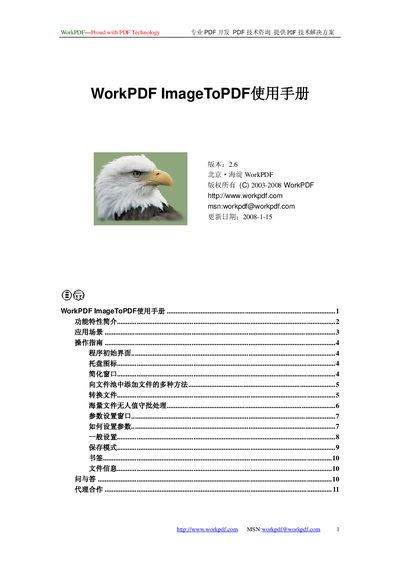
WorkPDF ImageToPDF User Manual
This manual introduces WorkPDF ImageToPDF, a tool that converts various image formats into PDF files. It describes core features such as multi‑format support, OCR double‑layer PDFs, batch processing, and multithreaded conversion.
The guide provides step‑by‑step instructions for setting parameters, using the file pool, creating bookmarks, and managing PDF metadata. It also includes a FAQ section that answers common usage questions. This manual is written in Chinese.
Covers: 功能特性简介 · 操作指南 · 海量文件无人值守批处理 · 参数设置窗口 · 书签 · 文件信息
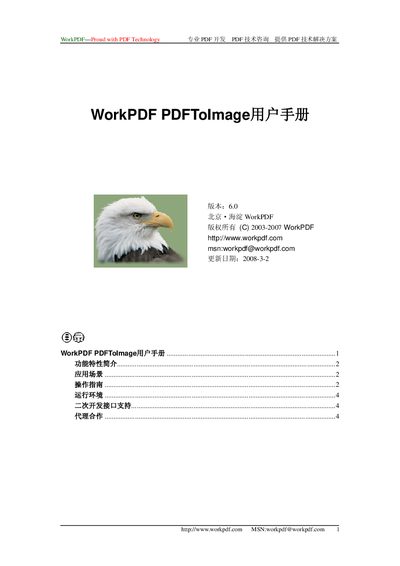
WorkPDF PDFToImage User Manual
WorkPDF PDFToImage is a Beijing‑based software that converts PDF pages into image files such as JPG, EMF, TIF, GIF, PNG, BMP, and multi‑page TIFF. It works as an Acrobat plug‑in and supports Acrobat 5 or later, offering adjustable image resolution and clarity.
The manual covers feature overviews, typical application scenarios, step‑by‑step operation instructions, conversion settings, system requirements, developer interfaces for server‑side integration, and information for potential distributors. This manual is written in Chinese.
Covers: Feature Overview · Application Scenarios · Operation Guide · Conversion Settings · System Requirements · Developer Interface
Latest WorkPDF manuals
WorkPDF 7.0 PDF Reader User Manual
User Manual 6 pages · 843 KB · ZHThe WorkPDF 7.0 PDF Reader User Manual describes features, interface, and usage instructions for the PDF editing and DRM software.
WorkPDF ImageToPDF User Manual
User Manual 11 pages · 282 KB · ZHThe WorkPDF ImageToPDF User Manual explains how to convert images to PDF, use OCR, batch processing, and customize settings.
WorkPDF PDFToImage User Manual
User Manual 4 pages · 152 KB · ZHThe WorkPDF PDFToImage user manual explains how to convert PDF pages to various image formats and configure conversion settings.
Which document do I need?
User Manual
Day-to-day operation, settings and troubleshooting. Start here if the product is already set up.
Questions answered in WorkPDF manuals
What are the system requirements for WorkPDF?
The software requires at least 1 GB of RAM, 20 GB of hard‑disk space with at least 500 MB free, and a display of 1024×768 true‑color (32‑bit) or higher.
What is the difference between the OCR version and the normal version?
The OCR version and the normal version have the same functionality, but the OCR version is priced higher; the normal version adds a watermark to PDFs when OCR is used, while the OCR version does not.
How can I quickly hide and show the main window?
Press Alt+S to toggle the main window visibility.
Can PDFToImage create a multi‑page TIFF from a multi‑page PDF?
Yes, when TIFF is selected as the output format, PDFToImage can save all pages of a PDF into a single multi‑page TIFF file.
How can I adjust the clarity of the generated images?
The manual provides a setting for image clarity; higher clarity increases file size, while lower clarity reduces it.