
Key facts
- Manuals
- 1
- Languages
- ZH
- Last added
- 2026-09-28
Featured Sixin manuals
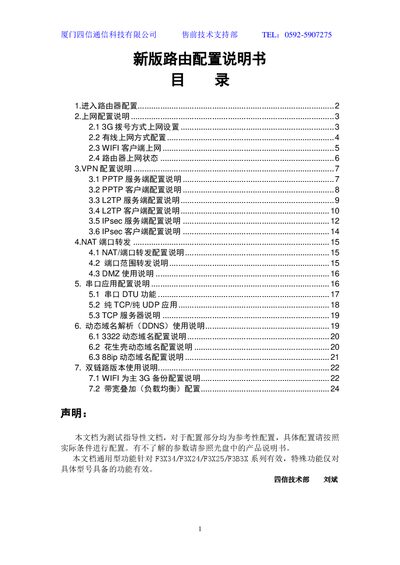
Sixin F3X34/F3X24/F3X25/F3B3X Router Configuration Manual
This manual explains how to access the router’s web interface, set up various WAN connection types (3G/4G, static IP, PPPoE), configure Wi‑Fi client mode, VPN services, NAT port forwarding, serial‑port applications and dynamic DNS. It also provides instructions for dual‑link operation, including Wi‑Fi primary with 3G backup and load‑balancing.
Each section includes step‑by‑step settings, example parameters and notes on online keep‑alive methods to ensure reliable connectivity. The guide is intended for technical staff and end‑users who need to customize the router for their network environment. This manual is written in Chinese.
Covers: Entering Router Configuration · Internet Configuration · Wi‑Fi Client Mode · VPN Configuration · NAT Port Forwarding · Serial Port Application
Latest Sixin manuals
Sixin F3X34/F3X24/F3X25/F3B3X Router Configuration Manual
User Manual 25 pages · 1 MB · ZHConfiguration guide for Sixin F3X34/F3X24/F3X25/F3B3X routers covering internet, VPN, NAT, DDNS and dual‑link settings.
Which document do I need?
User Manual
Day-to-day operation, settings and troubleshooting. Start here if the product is already set up.
Questions answered in Sixin manuals
How do I access the router’s web configuration page?
Connect a PC to the router’s LAN port, open a browser and enter the gateway address – 192.168.1.1 for F3X34 or 192.168.1.2 for F3X24.
From: Sixin F3X34/F3X24/F3X25/F3B3X Router Configuration Manual
How can I keep a 3G connection alive when there is no traffic?
Enable the online keep‑alive feature, choose the ping method, set a detection interval and a reachable server IP (e.g., 8.8.8.8). The router will periodically ping the server to stay online.
From: Sixin F3X34/F3X24/F3X25/F3B3X Router Configuration Manual